3-2 Network Configuration
Learning Objectives
This chapter will guide you through basic network configuration on your Pandora system. You'll learn how to successfully set up the initial network environment, laying the groundwork for future remote operations or software installations.
Before you begin network configuration, please connect the following to your Pandora development board:
- Monitor (via HDMI)
- Keyboard and Mouse (USB interface)
- Wired Network (connect an RJ45 network cable)
After connecting your devices, you'll need to decide if you need to manually set an IP address, depending on your development environment's network setup.
1. If your environment has DHCP, you can usually skip the manual configuration step.
2. If you don't have DHCP, please proceed with static IP configuration.
DHCP Configuration
1. DHCP Configuration
Click on the "Show Applications" button.
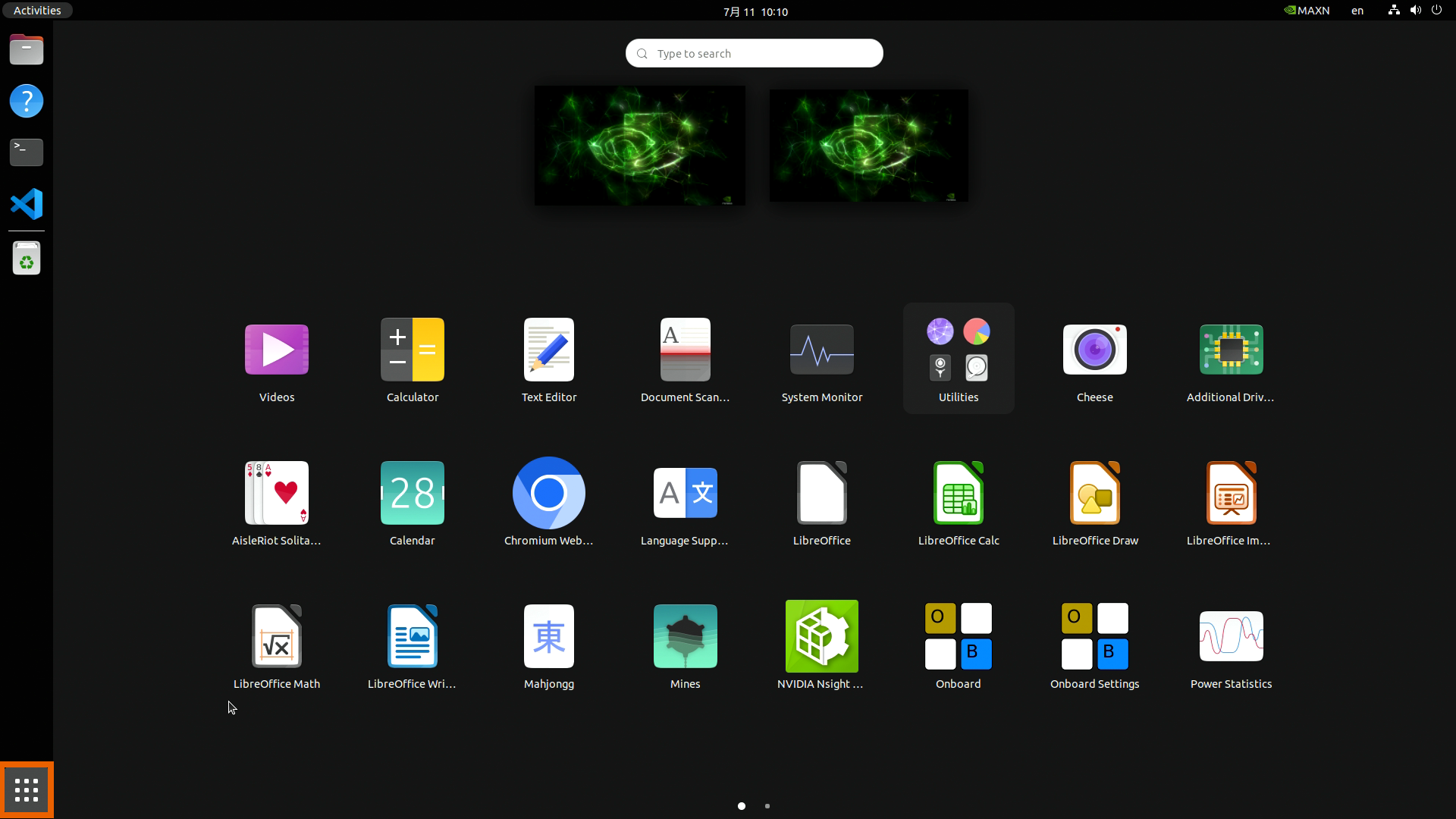

Type "setting" into the search bar and open it.
2. Enable DHCP in Network Card Settings
Click on "Network," then click the gear icon to enter your network card's settings.
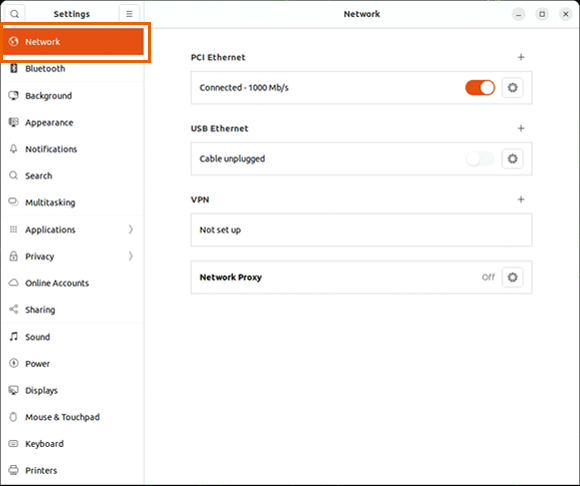

Go to the IPv4 tab, click Automatic, and then click Apply.
.png)
3. Verify the Obtained IP Address
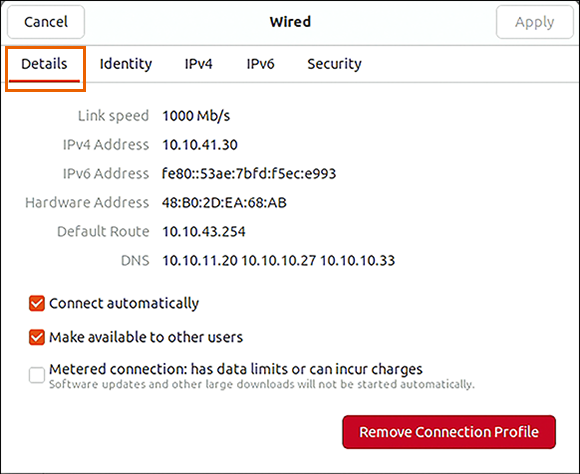
Click on the Details tab to view the obtained IP. If you see an assigned IP address (like 192.168.x.x or 10.10.x.x), it means you've successfully obtained a valid IP.

Static IP Configuration
1. Refer to the DHCP section for instructions on how to open your network card settings.
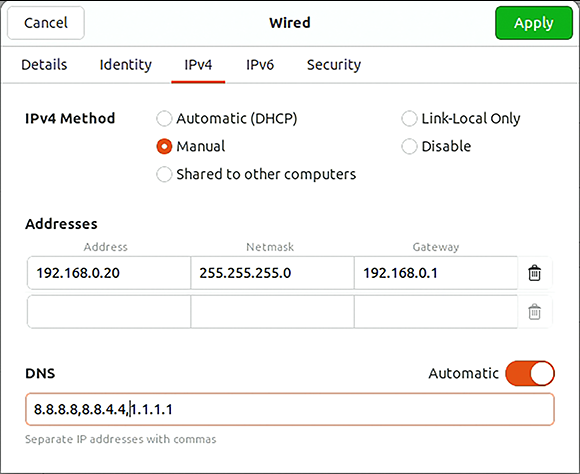
2. Go to the IPv4 tab and set the IPv4 Method to Manual. Then, configure the following information:
a. IP Address
b. Subnet Mask
c. Gateway
d. DNS Servers
● Once configured, click Apply to complete the setup.
.png)
Common Issues
Q1: I connected the network cable, but it shows "Cable unplugged."
A1-1: Make sure the other end of your network cable is connected to a network device (like a switch or hub).
A1-2: Try swapping out the network cable to confirm it's not damaged.
Q2: I connected the network cable, but I didn't get an IP address.
A2: Ensure your network environment supports DHCP.
Q3: I connected the network cable and got an IP address, but I can't access the internet.
A3-1: If ping 8.8.8.8 fails, it means your current environment doesn't have internet access.
A3-2: If ping 8.8.8.8 succeeds but ping google.com fails, it indicates an issue with your DNS settings.