10-3 人物検出機能のサンプルチュートリアル
学習目標
前の章では、「ネットワークストリームの受信」と「 OpenCV 画像変換・レンダリング 」機能を備えたクリーンな基礎テンプレートを構築することに成功しました。この章では、この強固な基盤の上で、NexVDO SDK の QDEEP AI エンジンを正式に呼び覚ます方法を読者の皆様に案内します。
この章を通じて、以下のことを学びます:
1. AI の事前学習済みモデルファイルを正しく設定して読み込む方法。
2. QDEEP エンジンにおける「 オブジェクト検出 ( Object Detection ) 」シリーズのコア API をマスターする。
3. 受信した純粋な NV12 非圧縮画像を、推論のために AI エンジンに完璧に供給 ( フィード ) する。
4. AI が返すメタデータ ( Metadata ) を解析し、OpenCV を使用して認識結果(トラッキングバウンディングボックスやラベルなど )をリアルタイム映像に重ねて描画する。
準備作業
AI エンジンを呼び出す前に、まず学習済みのモデルファイルを準備する必要があります。
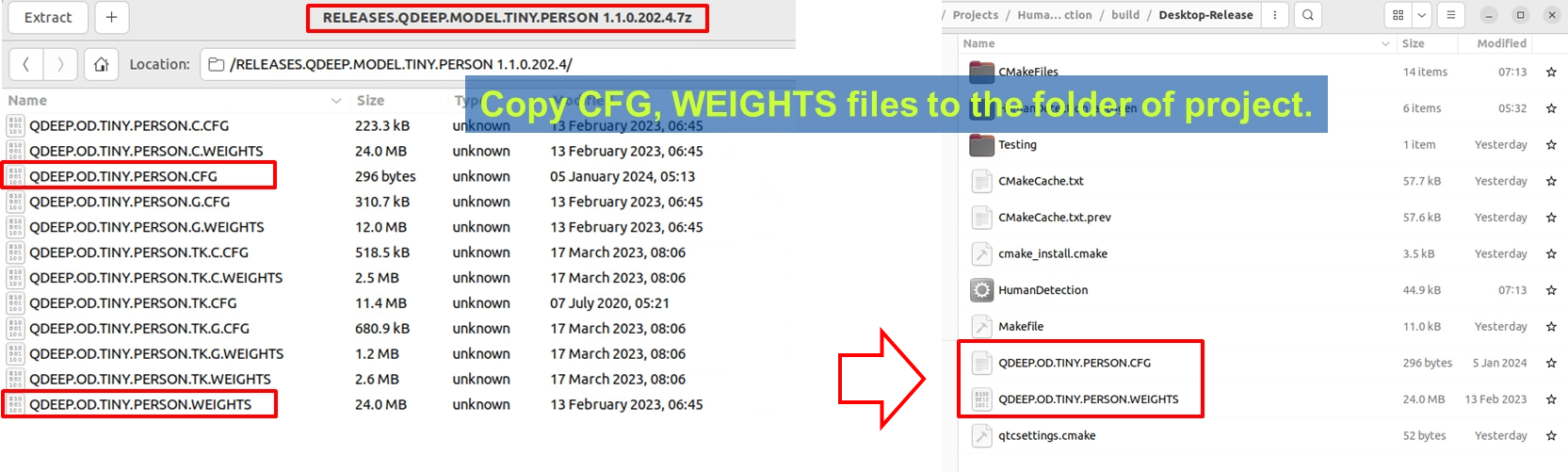
1. YUAN から提供された Tiny Person 人物検出モデルの圧縮ファイル ( RELEASES.QDEEP.MODEL.TINY.PERSON... ) を準備します。
2. 解凍した QDEEP.OD.TINY.PERSON.CFG ( 設定ファイル ) と QDEEP.OD.TINY.PERSON.WEIGHTS ( 重みファイル ) をコピーして取り出します。
3. これら2つのファイルを、Qt プロジェクトのビルド出力ディレクトリ( 通常は build-xxx-Desktop-Release フォルダ内で、実行ファイルと同じ階層 )に直接貼り付けます。
コア API と構造体の紹介
QDEEP オブジェクト検出エンジンを起動するには、同様に「 画像の取得 」と「 画像の処理 」を2つの段階に分ける必要があります。コールバック ( Callback ) で元の非圧縮データ ( NV12 ) を取得し、それを QDEEP エンジンに「 供給 」して処理させます。

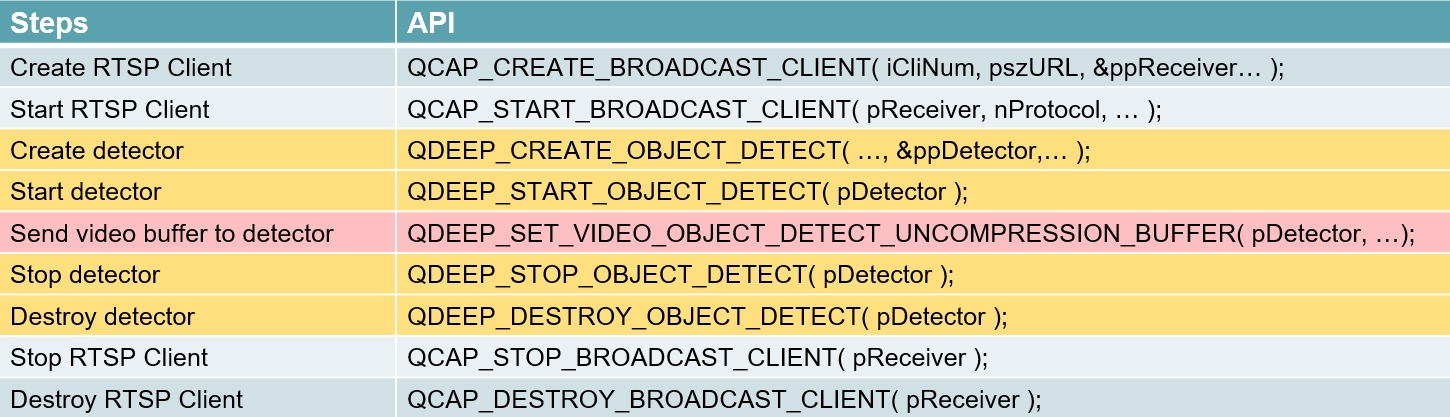
モデルファイルが所定の位置にあることを確認した後、標準的な API の使用順序は以下の通りです:
1. QDEEP_CREATE_OBJECT_DETECT : AI 検出器を作成します( そして読み込むモデルファイルを指定します )。
2. QDEEP_START_OBJECT_DETECT : AI 検出エンジンを起動します。
3. QDEEP_SET_VIDEO_OBJECT_DETECT_UNCOMPRESSION_BUFFER : コールバック内で非圧縮画像バッファを継続的に供給し、AI に認識推論を実行させます。
4. QDEEP_STOP_OBJECT_DETECT : AI 検出エンジンを停止します。
5. QDEEP_DESTROY_OBJECT_DETECT : AI 検出器を破棄し、リソースを安全に解放します。
QDEEP_CREATE_OBJECT_DETECT
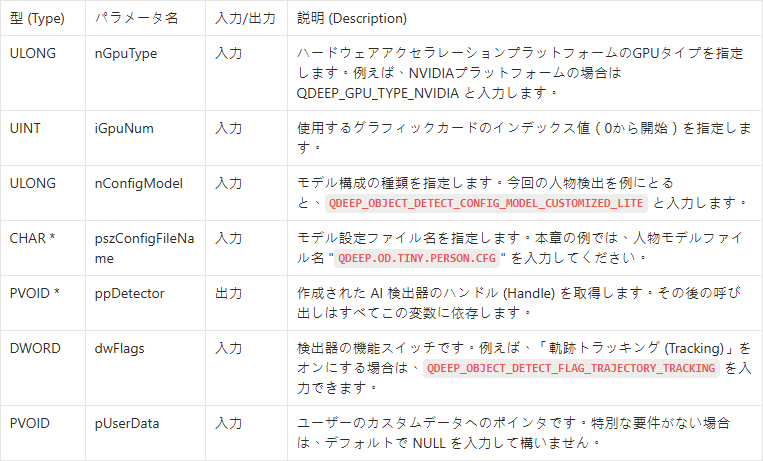
これは、AIエンジンを作成し、頭脳( モデル )をロードするための最も重要なAPIです。ユーザーは、このAPIを通じて検出器を初期化する必要があります。
QDEEP_START_OBJECT_DETECT
モデルのロードが完了したら、このAPIを通じてAIエンジンの推論機能を正式に起動します。

QDEEP_SET_VIDEO_OBJECT_DETECT_UNCOMPRESSION_BUFFER
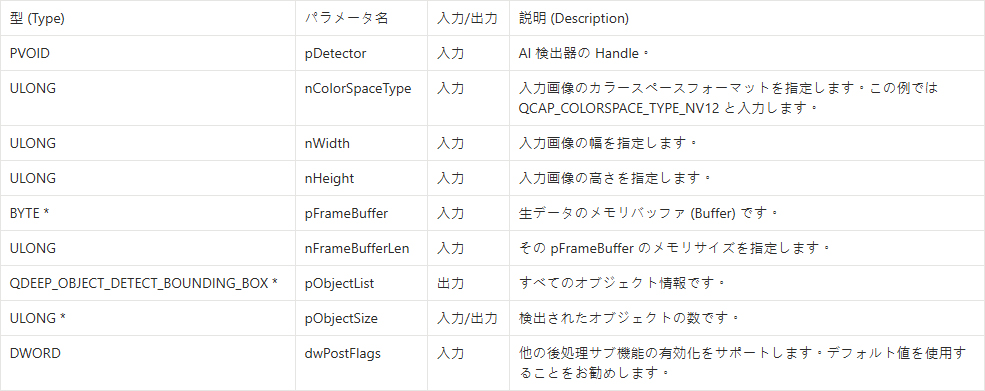
コールバック ( Callback ) 内で、構造体を展開した後の純粋な NV12 画像をこの API に継続的に供給 (フィード) し、そこから AI の認識結果を受け取る必要があります。
QDEEP_STOP_OBJECT_DETECT
この API を使用して、AI エンジンの計算を一時停止します。

QDEEP_DESTROY_OBJECT_DETECT
プログラムを完全に閉じる前に、必ずこの API を呼び出して AI 検出器を破棄し、GPU のビデオメモリとシステムリソースを安全に解放してください。

➤ QDEEP_OBJECT_DETECT_BOUNDING_BOX 構造体の理解
AI 分析が完了した後に返される pObjectList 配列には、各要素にオブジェクトの完全な情報が含まれています:

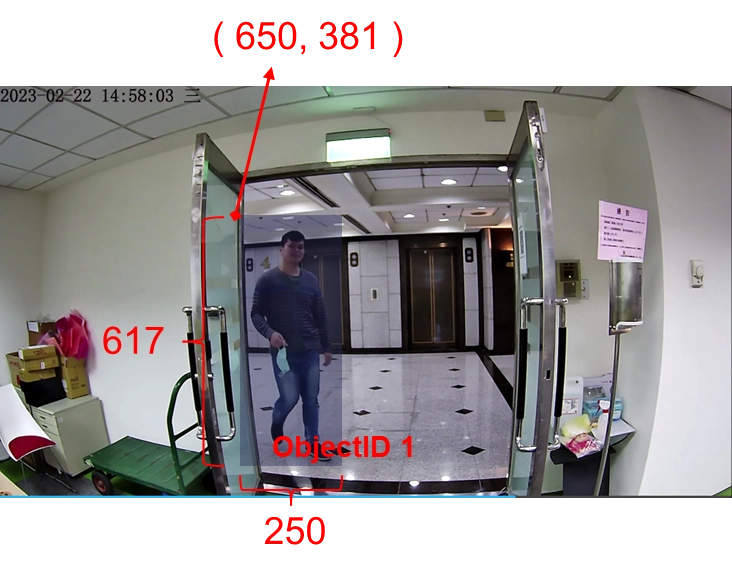
コアコードの記述
概念を理解したところで、QDeepSample プロジェクトを開いてください。プログラムに AI の魂を注入する準備が整いました!
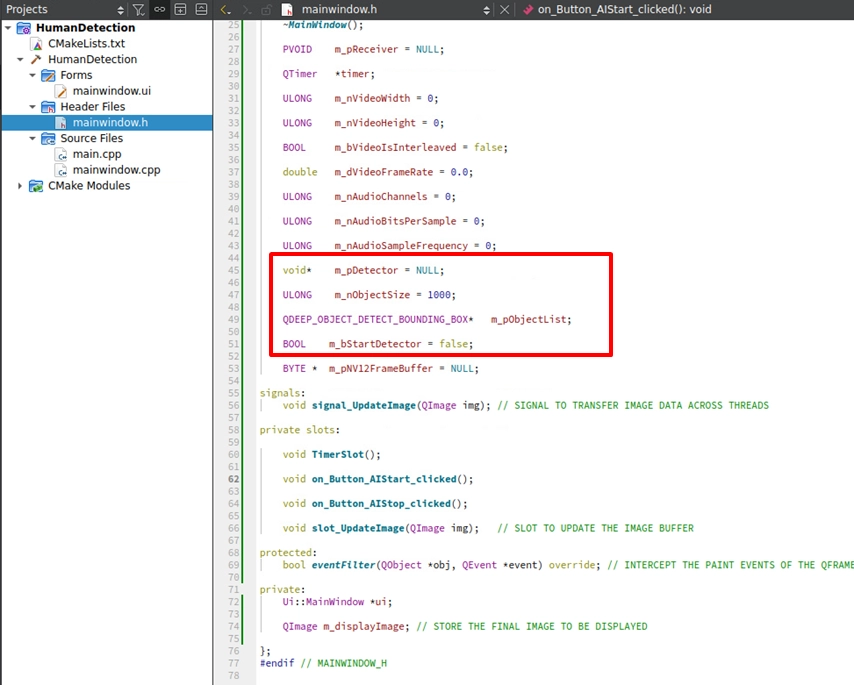
ヘッダーファイルの変数の追加と初期化
mainwindow.h を開き、private: 変数セクションで、AI エンジンの Handle、結果を格納する構造体配列、および制御スイッチのブール値 ( boolean ) を宣言します:
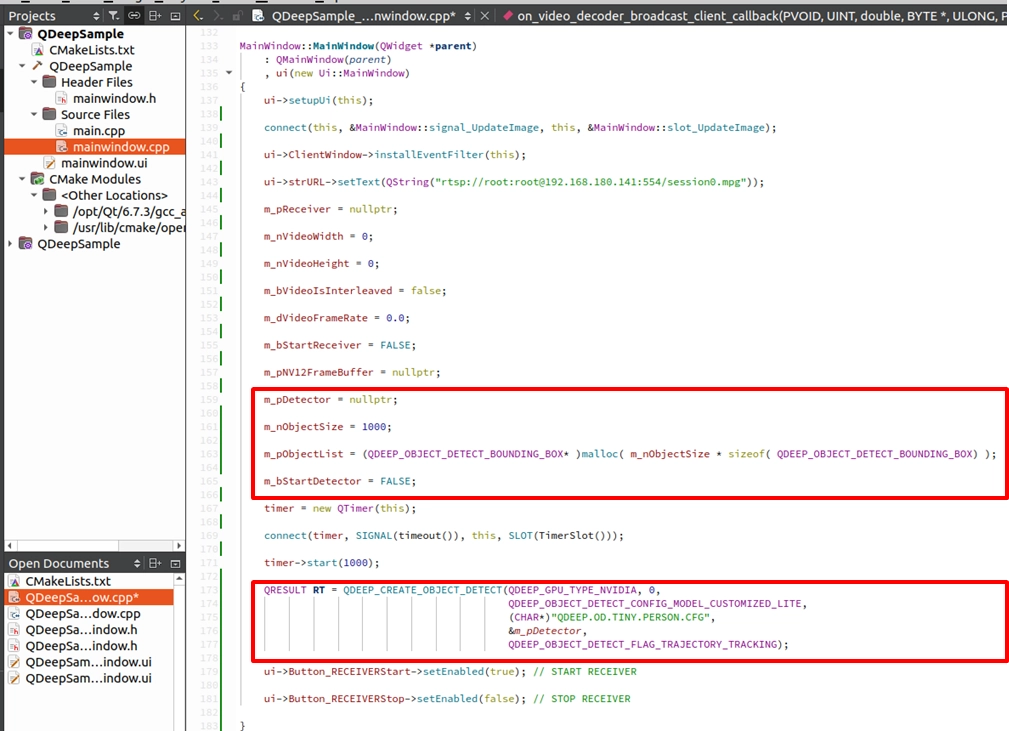
続いて、mainwindow.cpp のコンストラクタ MainWindow::MainWindow(...) を開きます。malloc を使用して結果配列のためのメモリを割り当て、API を呼び出して AI エンジンを正式に作成する必要があります。
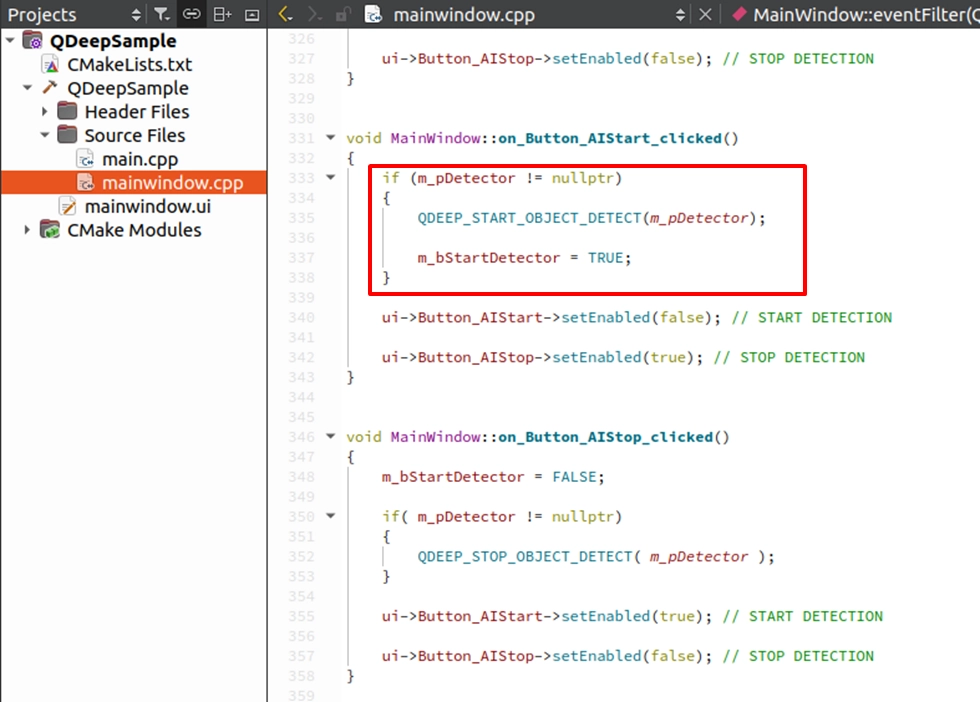
START DETECTION の実装 ( 検出開始 )
前の章で配置した on_Button_AIStart_clicked() スロット関数を見つけます。エンジンを起動する API を入力し、ボタンの状態を連動させます:
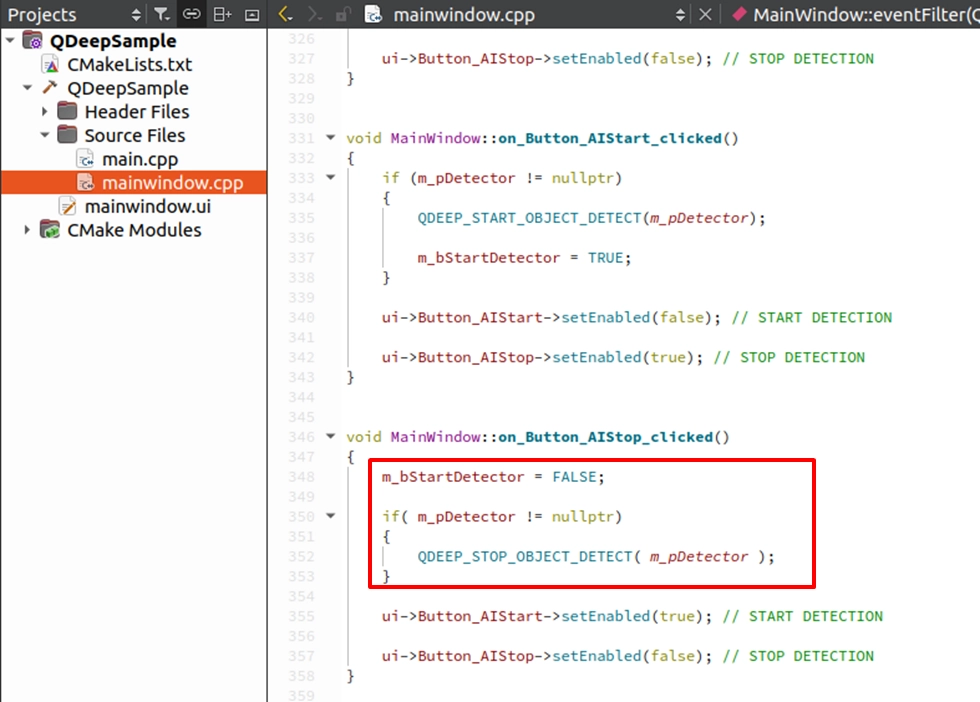
STOP DETECTION の実装 ( 検出停止 )
前の章で配置した on_Button_AIStop_clicked() スロット関数を見つけます。エンジンを停止する API を入力し、ボタンの状態を連動させます:
NV12 データの供給と OpenCV を使用した認識結果の描画
on_video_decoder_broadcast_client_callback コールバック関数に移動してください。前の章で記述した OpenCV 画像変換ロジック ( cv::cvtColor ) のすぐ下です。ここでは、3つの重要な段階に分けて説明します:
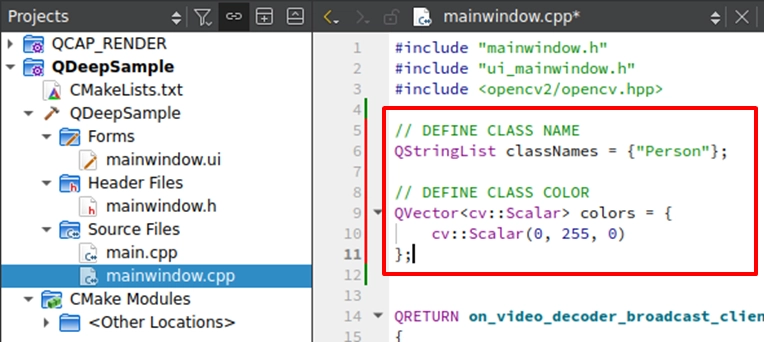
段階 1. 複数クラスの「 ラベルと専用カラー 」マッピングテーブルの作成 :描画する前に、まずコード内で2つの配列、classNames ( 名前を格納 ) と colors ( 色を格納 ) を宣言します。
➤ なぜ配列を使用するのか? AI が返す結果には nClassID ( クラスインデックス) が含まれるためです。この ID を使用して、配列から対応する名前と色を直接探すことができます!本章の例である人物モデルは 0 (Person を表す) しか返しませんが、このようなアーキテクチャは非常に高い拡張性を備えています。将来、複数クラスのモデルを使用する場合、この配列の定義を拡張する( 例えば、ID:1 に赤、ID:2 に青を設定する)だけで、「 異なるオブジェクトに異なる色の枠を描画する 」という高度な視覚効果を簡単に実現できます!
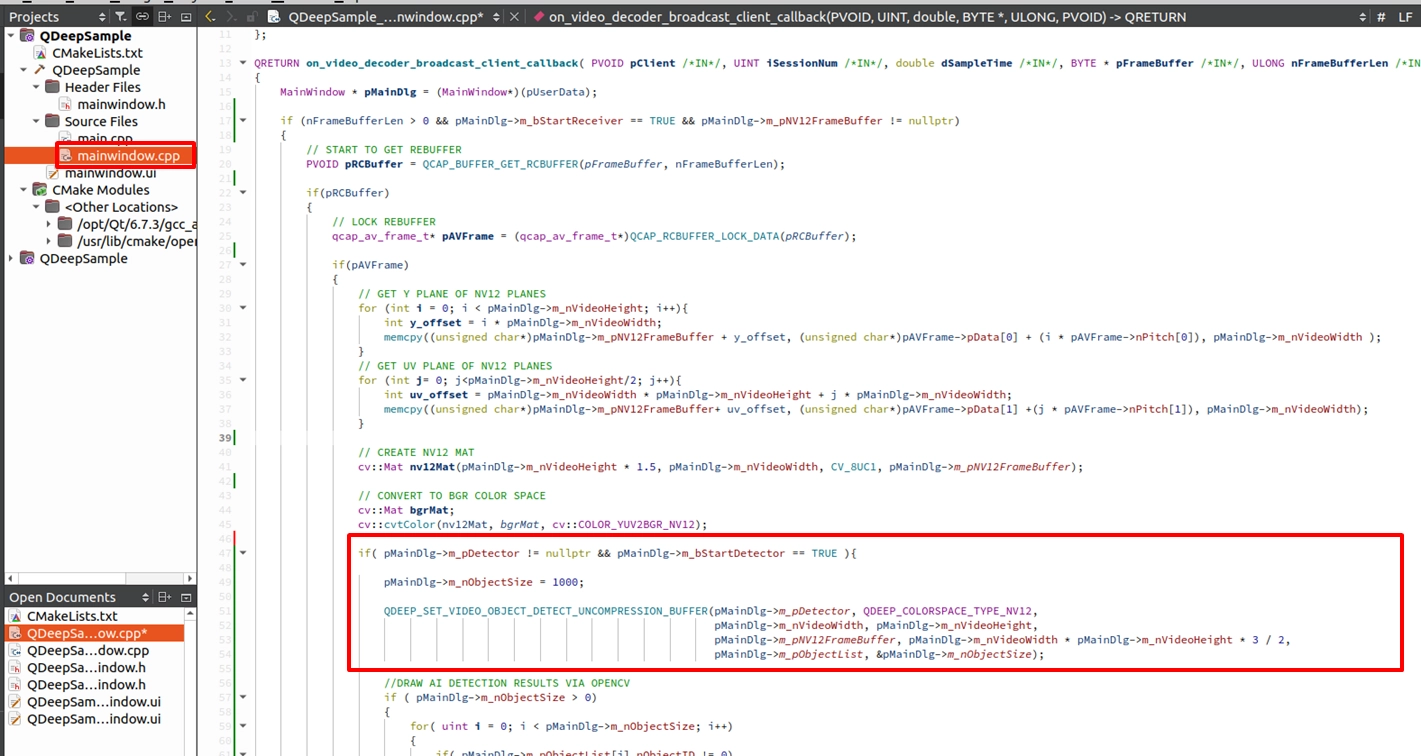
段階 2. NV12 画像を AI エンジンに送信:前の手順で NV12 画像バッファ ( Buffer ) を取得した後、それを検出器 ( Detector ) に送信できます。
➤ 非常に重要な詳細:データを AI エンジンに供給する前に、「 まずオブジェクトリストの容量サイズをリセットする ( pMainDlg->m_nObjectSize = 1000 ) 」必要があります!なぜなら、m_nObjectSize は入力/出力 ( I/O ) 共有パラメータだからです。渡されるときは「 準備した最大配列容量 」を表しますが、実行後は API によって「 その画面で実際に検出されたオブジェクトの数 」に変更されます。リセットしないと、この数値はどんどん小さくなり( 例えば、前の画面で2人しか検出されなかった場合、容量は2に変更されます )、後続の画面で新しいオブジェクトを格納できず、エラーが発生する原因となります。
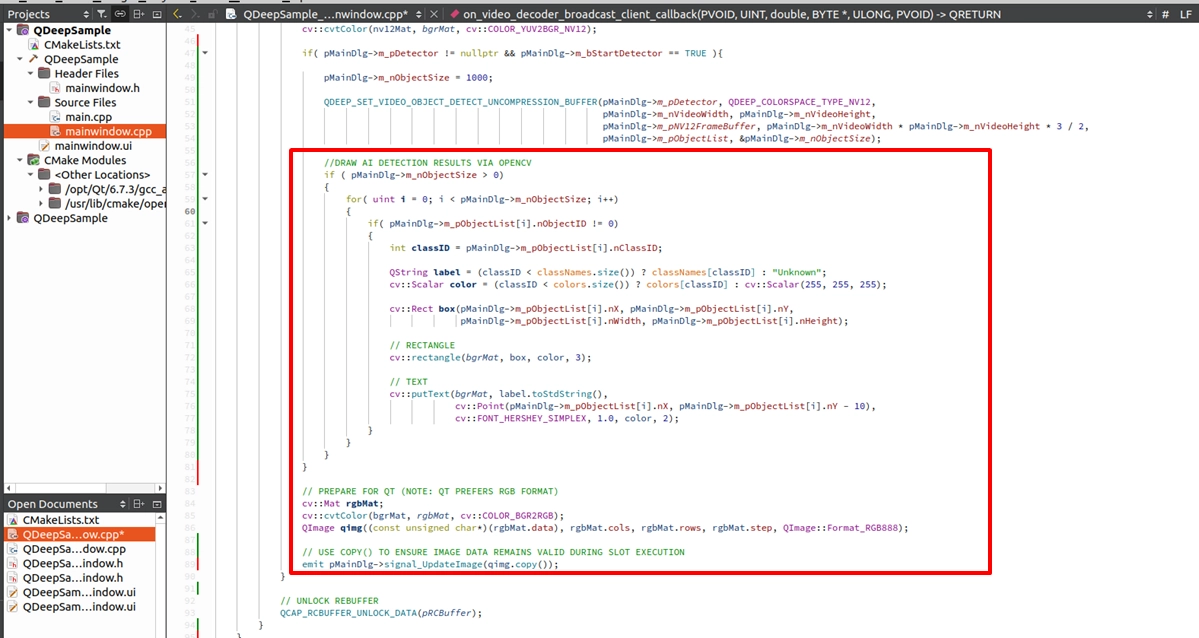
段階 3. 複数のオブジェクト位置の解析と、テキストおよび認識枠の重ね合わせ:API からオブジェクトの情報を取得した後、OpenCV の描画 API を使用してこれらのオブジェクトを正確にマークできます。画面に同時に出現する可能性のある複数のオブジェクトに対しては、ループ ( for-loop ) を使用して m_pObjectList を走査し、各オブジェクトの位置を1つずつ取得する必要があります。次に、画面上に長方形のトラッキング枠を描画するだけでなく、オブジェクトの上部にテキストを重ねて、そのオブジェクトのラベルと専用のトラッキング ID を明確に示す必要があります!
プログラム終了前の安全な終了処理
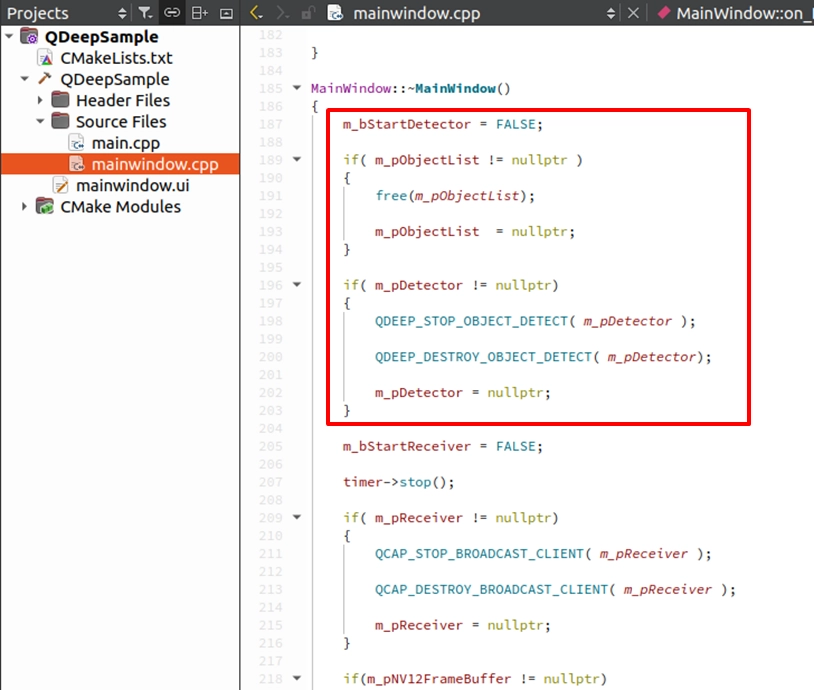
最後に、デストラクタ ~MainWindow() に、AI モデルのリソースを解放する API とメモリを free する動作を追加してください。これにより、ウィンドウを閉じる際に GPU の負荷が残らないようにすることができます。
最終確認
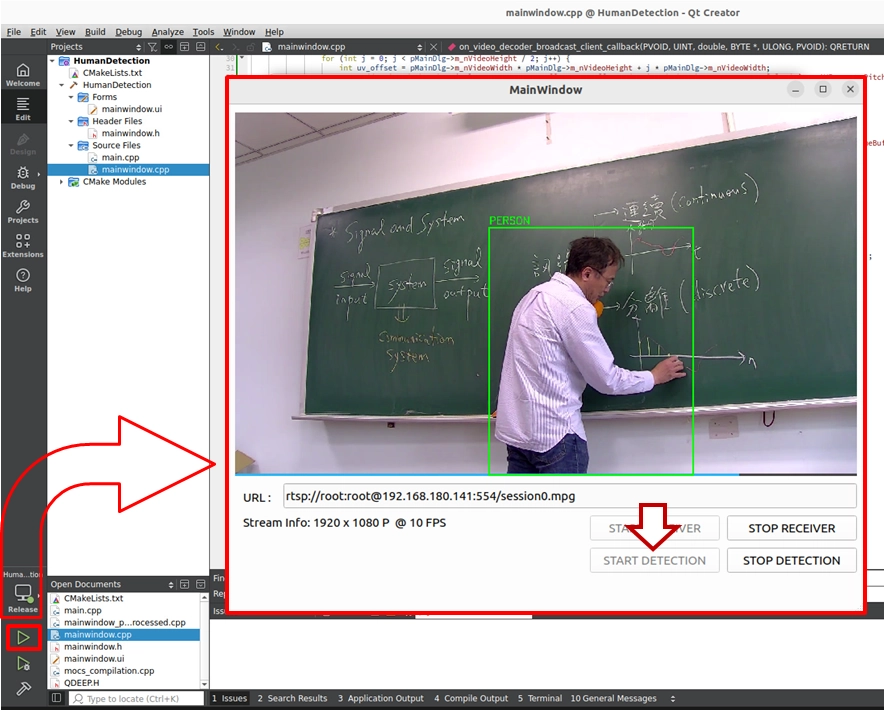
おめでとうございます!オブジェクト検出 ( Object Detection ) 機能を備えた最初の AI ビジュアル分析プロジェクトを無事に完了しました!さあ、左下の「 Build and RUN 」をクリックしてプロジェクトを実行し、私たちと一緒に奇跡の瞬間を目撃しましょう。
ソフトウェアのインターフェースには、綿密に配置された4つのボタンが表示されます。以下の順序で操作してください:
-
START RECEIVER ( 受信の開始 ):クリックするとネットワークストリームが開始されます。この時、画面には AI 処理されていない純粋なリアルタイム映像が表示されます。
-
START DETECTION ( 検出の開始 ):映像がスムーズであることを確認した後、このボタンをクリックして AI 分析を開始します。この時、プログラムは QDEEP エンジンを正式に呼び覚まします!
START DETECTION をクリックした後、画面に人物が現れると、システムは非常に高い精度で緑色のトラッキング枠でその人物をロックオンし、上部に「 Person 」という文字を完璧に重ね合わせて表示します!
➤ 温かいリマインダー ( 非常に重要 ):このソフトウェアを「 初めて 」開く (プログラムを実行する) 瞬間、インターフェースが表示されるまで少し待つ必要があるかもしれませんが、慌てないでください!これは、「 AI モデルを読み込む 」ロジックをプログラムのコンストラクタ内に記述しているためです。モデルの初回実行時には初期化設定を行う必要があり、この時システムは巨大なニューラルネットワークの重みファイルを GPU に読み込もうと懸命に処理を行っています。ソフトウェアが正常に開けば( 初回読み込みの完了 )、AI の頭脳がバックグラウンドで準備完了したことを意味します!今後、ソフトウェアを再度開く際には、この初期化の待機時間は必要ありません!
-
STOP DETECTION ( 検出の停止 ):AI をオフにしたい場合はこのボタンをクリックします。画面はすぐに認識枠のない純粋な映像に戻ります。
-
STOP RECEIVER ( 受信の停止 ):テストを終了し、ネットワークストリームを停止します。
次の章【10-4】では、このアーキテクチャがどれほど強力であるかをお見せします。コアコードを変更する必要すらなく、「 モデルファイル ( CFG/WEIGHTS ) 」を置き換え、前のセクションで宣言した「 色とラベルの配列 」を拡張するだけで、このプログラムは瞬時に「 顔、頭部、身体のマルチオブジェクト認識システム 」へと進化します!それでは、次の章でお会いしましょう!