6-4 Using Docker
Learning Objectives
This chapter is designed to help learners gain an in-depth understanding of Docker containerization technology—from basic concepts to real-world applications. You will gradually master Docker’s core concepts, basic workflows, and advanced usage techniques. By the end, you will understand how containerization simplifies development environment setup, improves application deployment efficiency, and how to apply this knowledge in real projects. These skills are vital in modern development and DevOps workflows, greatly enhancing your professional competitiveness.
Docker Overview
Docker is an open-source containerization platform that allows developers to package applications and their dependencies into a portable container, achieving the principle of “build once, run anywhere.”
Basic Concepts
1. Container: A lightweight, executable, standalone software package
2. Image: A template used to create containers
3. Dockerfile: A script file for building Docker images
4. Repository: A service for storing and distributing Docker images
Common Commands
# Pull an image
docker pull [image_name]
# Run a container
docker run [options] [image_name]
# List running containers
docker ps
# List all containers
docker ps -a
# Stop a container
docker stop [container_id]
# Remove a container
docker rm [container_id]
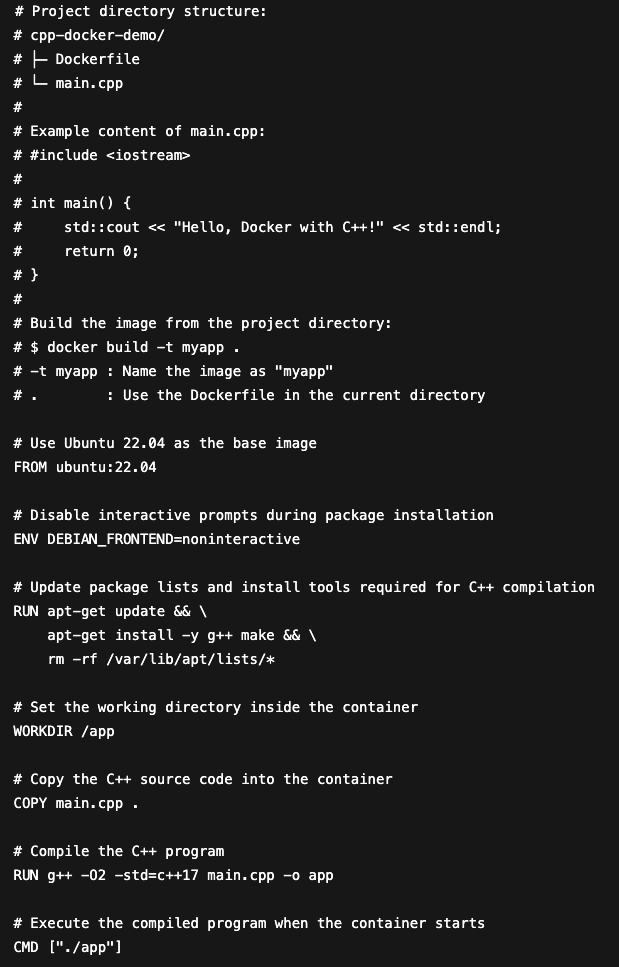
Example Dockerfile
# Project structure:
# cpp-docker-demo/
# ├─ Dockerfile
# └─ main.cpp
#
# main.cpp:
# #include
#
# int main() {
# std::cout << "Hello, Docker with C++!" << std::endl;
# return 0;
# }
#
# Build the Docker image in the project directory:
# $ docker build -t myapp .
# -t myapp : Name the image
# . : Use the Dockerfile in the current directory
# Use Ubuntu 22.04 as the base image
FROM ubuntu:22.04
# Disable interactive prompts during package installation
ENV DEBIAN_FRONTEND=noninteractive
# Update package lists and install C++ build tools
RUN apt-get update && \
apt-get install -y g++ make && \
rm -rf /var/lib/apt/lists/*
# Set the working directory inside the container
WORKDIR /app
# Copy the C++ source file into the container
COPY main.cpp .
# Compile the C++ source code
RUN g++ -O2 -std=c++17 main.cpp -o app
# Run the compiled application when the container starts
CMD ["./app"]

Command Descriptions
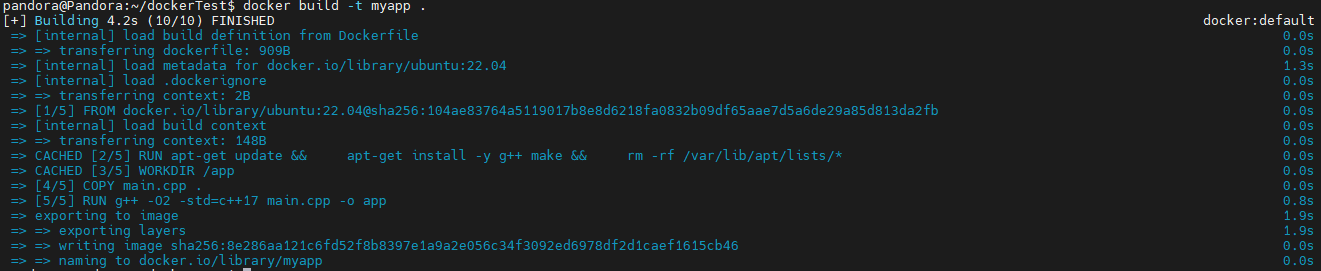
1. docker build
Used to build an image from a Dockerfile
Example:
docker build -t myapp:latest .
2. docker run
Used to run a container
Example:
docker run -p 3000:3000 myapp:latest

3. docker exec
Used to run commands inside a running container
Example:
docker exec -it [container_id] bash
Best Practices
1. Use official base images
2. Optimize image size by removing unnecessary files
3. Use .dockerignore to exclude unnecessary files
4. Properly configure environment variables
5. Implement health checks
Common Troubleshooting
1. Container Fails to Start
- Check if the port is already in use
- Inspect the container logs
- Verify environment variable configurations
2. Image Build Fails
- Check Dockerfile syntax
- Ensure network connectivity
- Verify sufficient disk space
Security Recommendations
1. Regularly update Docker and base images
2. Restrict container resource usage
3. Run containers as non-root users
4. Implement network isolation strategies
5. Regularly scan for container vulnerabilities
With the foundational knowledge and practical guidance above, you should now be able to start using Docker for containerized development. Keep practicing and explore advanced features gradually.