9-9 RTSP ストリーム受信側(クライアント)機能の実践チュートリアル
前の章のチュートリアルでは、NexVDO SDK を使用して RTSP ストリームサーバーを構築し、オープンソースのプレイヤー ffplay を通じて遠隔視聴の実現可能性を無事に検証しました。
➤ RTSP ストリームサーバー機能についてはこちらを復習できます: 9-8 RTSP ストリームサーバー機能の実践チュートリアル
➤ ffmpeg のインストールについてはこちらを復習できます : 9-6 オーディオ・ビデオ録画機能の実践チュートリアル
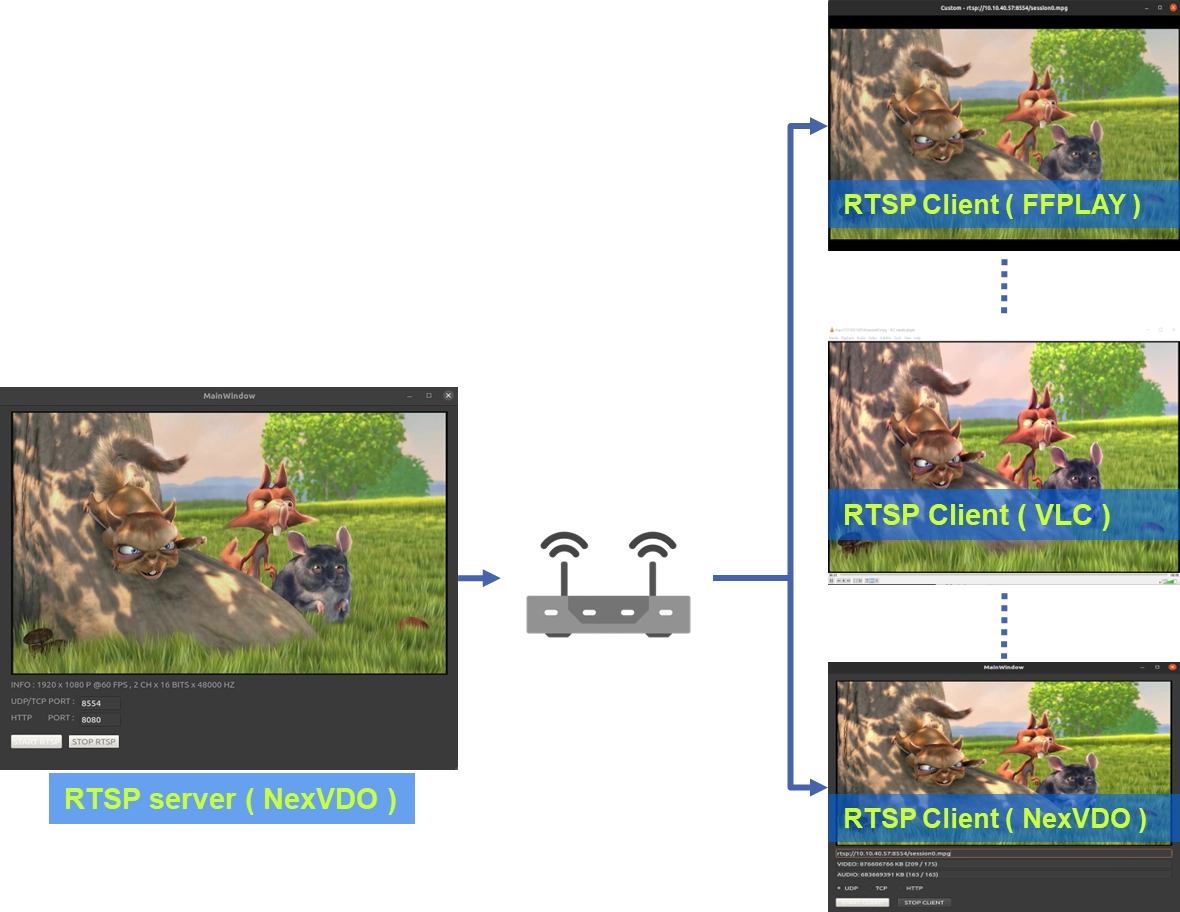
© Blender Foundation | Big Buck Bunny | CC BY 3.0
しかし、多くの実際のプロジェクト開発シナリオ(例えば、中央管理室のマルチ分割監視ソフトウェア、遠隔ドローンの操作インターフェース、または医療画像用の受信側の構築など)において、常にサードパーティ製プレイヤーに依存するわけにはいきません。「ストリームの受信、デコード、表示」といった機能を、自社開発のアプリケーションに完璧に統合する必要があります。
ご心配なく、NexVDO SDK は包括的な ユニバーサルストリームクライアント 機能を備えています!今日は、視点を「送信側 (Server)」から「受信側 (Client)」へと切り替え、RTSP 映像を受信できる専用プレイヤーを自分の手でコーディングする方法をお教えします!
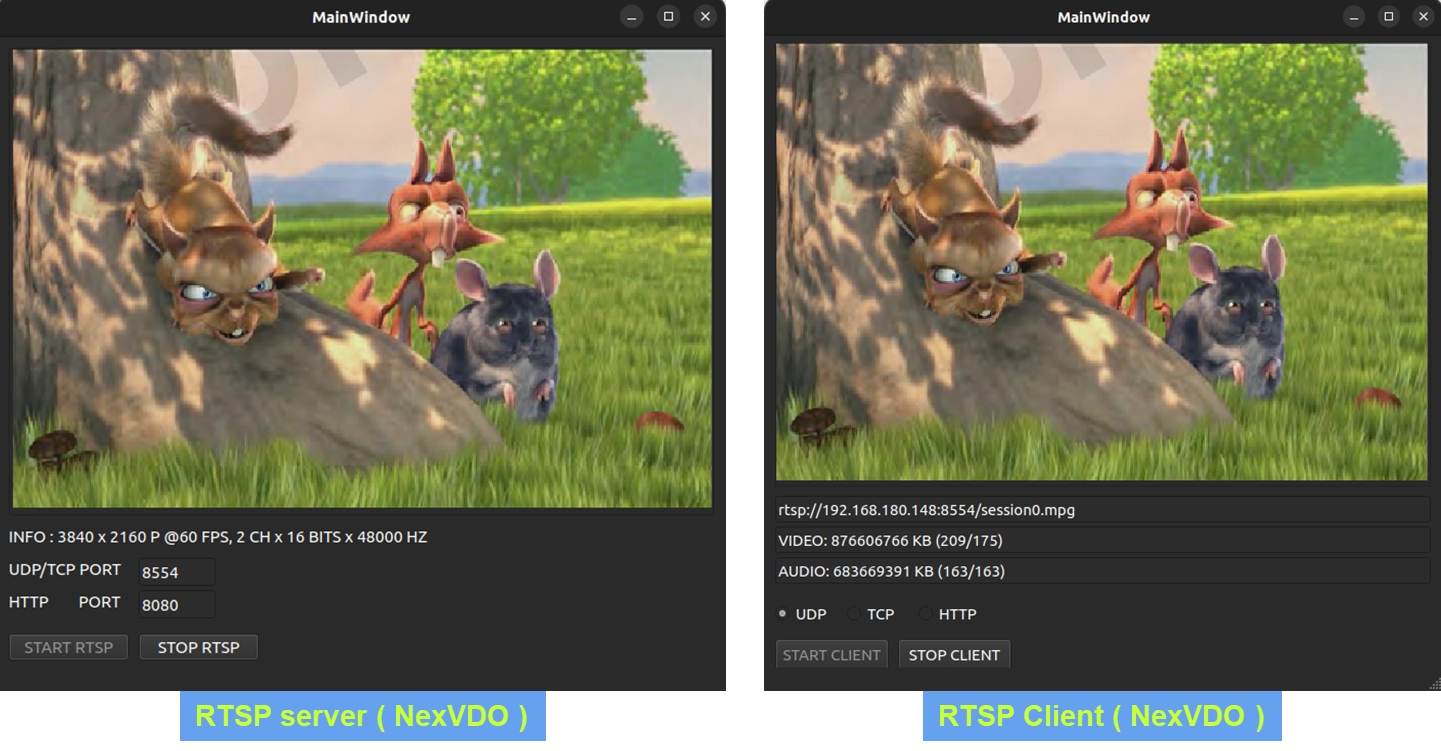
© Blender Foundation | Big Buck Bunny | CC BY 3.0
➤ コアコンセプト:受信側の基盤となる動作ロジック
API を呼び出し始める前に、まず公式プレゼンテーションの 6 ページにある非常に重要な「受信側アーキテクチャ図」を理解しておく必要があります。
私たちのプログラムがクライアント (Client) の役割を果たしてサーバー (Server) に接続する際、基盤レイヤーでは実際には一連の複雑な変換が行われています。NexVDO SDK はこれらの複雑な作業をすでにカプセル化(パッケージ化)しているため、以下の2つのコアな概念を理解するだけで済みます:
1. ネットワーク接続とプロトコルの選択 : RTSP サーバー側は常にネットワーク上で待機していますが、クライアント (Client) 側は自ら積極的に接続を開始する必要があります。接続時、ネットワーク環境の品質に応じて、ストリームの受信に UDP、TCP、 または HTTPのどれを使用するかを柔軟に選択できます。
2. デュアルトラック Callback 傍受メカニズム(圧縮ストリーム vs デコード画面) : クライアント (Client) がサーバー (Server) から送信されたストリームを正常に受信した時、これらのデータは圧縮された H.264 ( 映像 ) と AAC ( 音声 )フォーマットになっています。NexVDO SDK は、開発者が利用できる非常に柔軟な2つの「インターセプトポイント(Callback)」を提供しています:
• 第1のインターセプト ( Broadcast Client Callback ) : 最も原始的で、デコードされていない H.264/AAC 圧縮データを直接傍受(インターセプト)できるようにします。これは、ストリームを直接「ファイルとして保存」したり、「二次配信(再ストリーミング)」したりしたい開発者にとって非常に有用です。
• 第2のインターセプト ( Decoder Broadcast Client Callback ) : SDK には強力なハードウェアデコーダ (Video/Audio Decoder) が内蔵されています。デコード後、私たちが最もよく知っている NV12( 非圧縮映像 ) と PCM( 非圧縮音声 )を出力します。画面を UI に表示するには、この第2のインターセプト Callback をリッスン(受信)する必要があります!


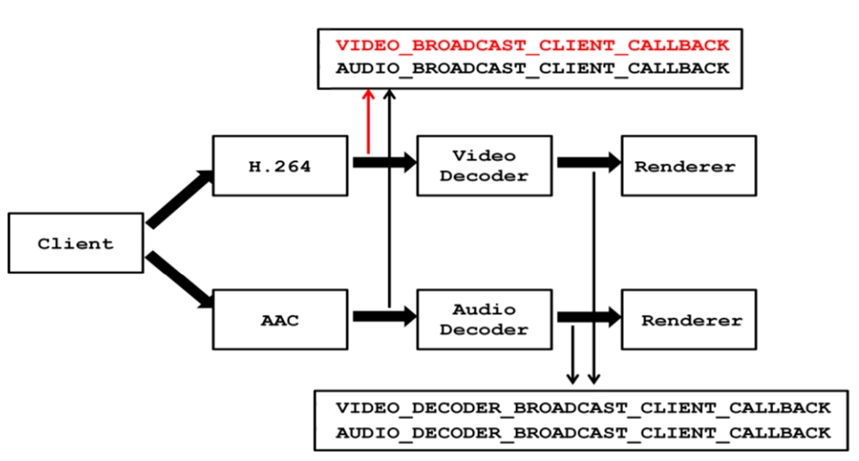
コア API の理解 - ブロードキャストクライアントエンジン
以前に学んだキャプチャや録画と同様に、RTSP 受信側も NexVDO SDK の一貫したエレガントなライフサイクルロジックに従っています。

標準的な使用手順は以下の通りです:
1. QCAP_CREATE_BROADCAST_CLIENT :クライアントを作成します。
2. QCAP_REGISTER_... :イベントコールバックとデータコールバックを登録します。
3. QCAP_START_BROADCAST_CLIENT :接続を開始します。
4. PF_... :コールバック関数の定義から情報と画面を取得します。
5. QCAP_STOP_BROADCAST_CLIENT :クライアントの接続を停止します。
6. QCAP_DESTROY_BROADCAST_CLIENT :クライアントを解放(破棄)します。
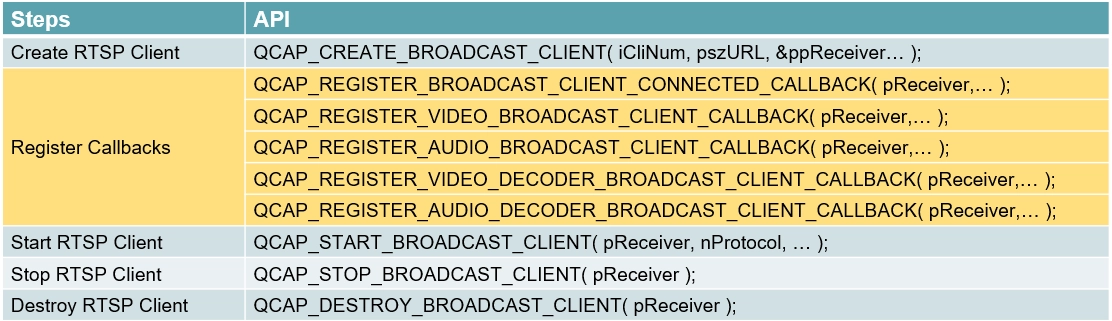
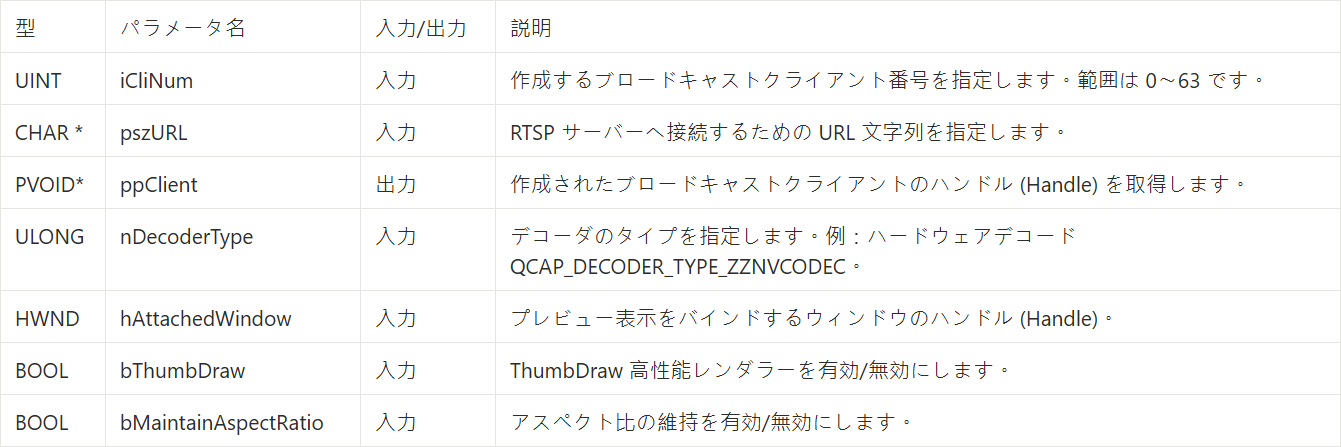
QCAP_CREATE_BROADCAST_CLIENT
この API は RTSP 受信側 ( Client ) オブジェクトの初期化と作成に使用されます。ここでリモートサーバーの URL を指定し、映像のデコードに使用するデコーダのタイプを設定する必要があります。
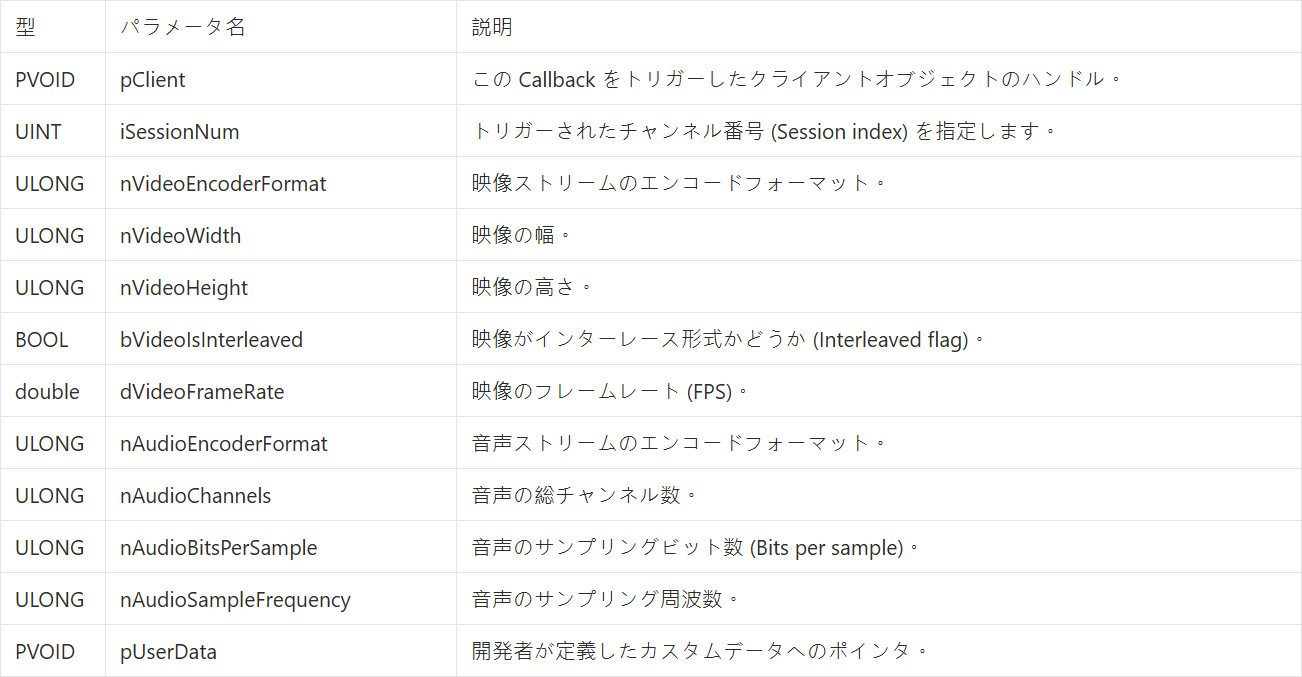
イベントコールバック - 接続ステータス
• 登録 API :QCAP_REGISTER_BROADCAST_CLIENT_CONNECTED_CALLBACK
• トリガーのタイミング : これは「接続ステータス」を監視(リッスン)するためのメイン処理(スイッチボード)です。受信側がリモートサーバーに正常に接続されると、SDK はこの Callback を通じてサーバーの映像解像度、FPS、および音声サンプリング周波数などの重要なフォーマット情報を返します。
• 返される情報パラメータ ( PF_BROADCAST_CLIENT_CONNECTED_CALLBACK ) :
データコールバック - 圧縮映像データの取得
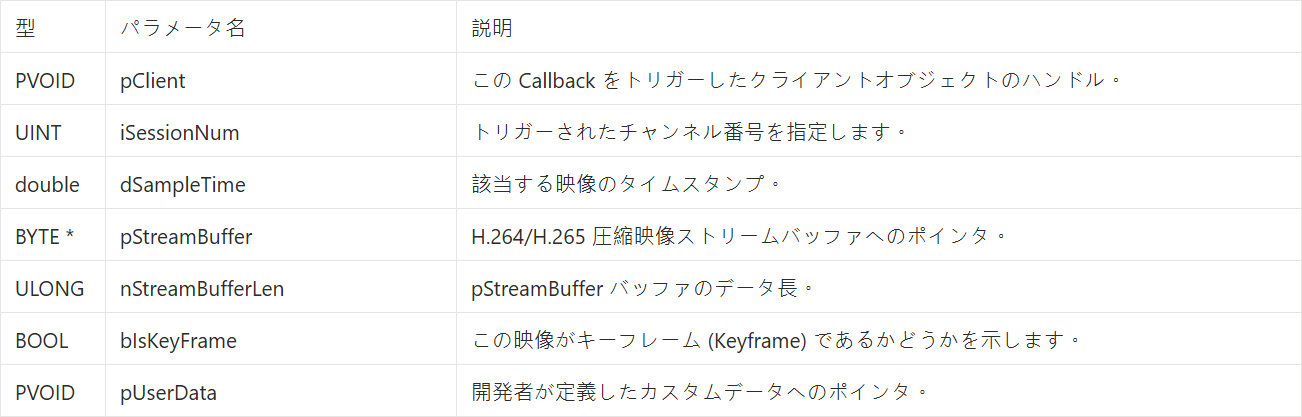
• 登録 API :QCAP_REGISTER_VIDEO_BROADCAST_CLIENT_CALLBACK
• トリガーのタイミング : これにより、最も原始的で デコードされていない圧縮映像データ( H.264 )を傍受( インターセプト )して取得できます。MP4 として直接保存したり、他のサーバーへ二次配信( 再ストリーミング )したりするのに非常に適しています。
• 返される情報パラメータ ( PF_VIDEO_BROADCAST_CLIENT_CALLBACK ) :
データコールバック - 圧縮音声データの取得
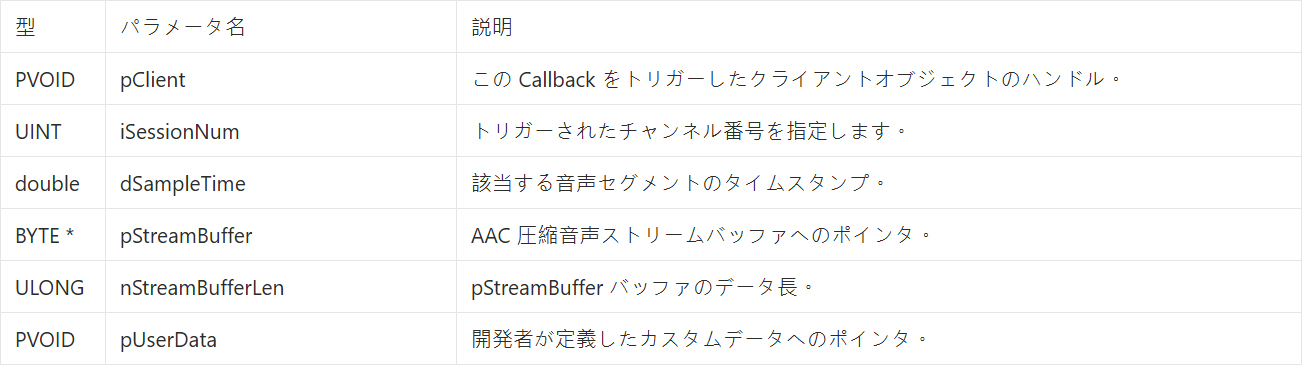
• 登録 API :QCAP_REGISTER_AUDIO_BROADCAST_CLIENT_CALLBACK
• トリガーのタイミング : 原理は QCAP_REGISTER_VIDEO_BROADCAST_CLIENT_CALLBACK と同じです。この API は特別に デコードされていない圧縮音声データ( AAC など )を傍受して取得するために使用されます。
• 返される情報パラメータ ( PF_AUDIO_BROADCAST_CLIENT_CALLBACK ) :
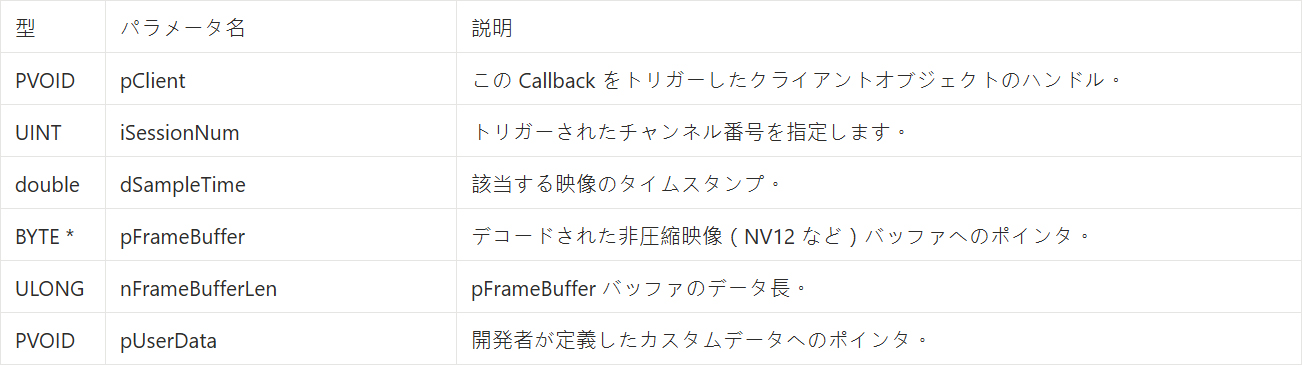
データコールバック - 非圧縮映像データの取得
• 登録 API :QCAP_REGISTER_VIDEO_DECODER_BROADCAST_CLIENT_CALLBACK
• リガーのタイミング : ストリームが SDK のハードウェアデコーダによって処理されると、ここから非圧縮の純粋な映像フレームが出力されます。
• 返される情報パラメータ ( PF_VIDEO_DECODER_BROADCAST_CLIENT_CALLBACK ):
データコールバック - 非圧縮音声データの取得
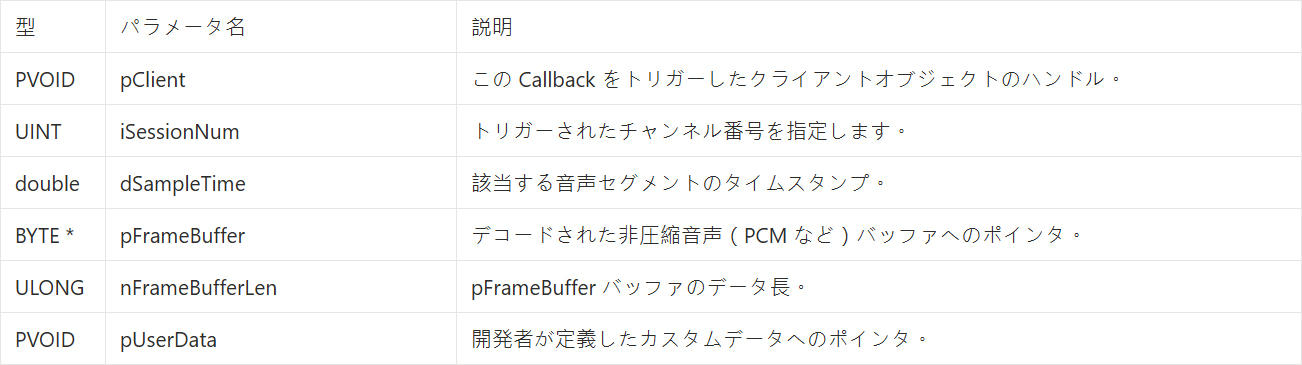
• 登録 API :QCAP_REGISTER_AUDIO_DECODER_BROADCAST_CLIENT_CALLBACK
• トリガーのタイミング : デコーダは受信した音声を 非圧縮の生の音声データ( PCM など )に復元( 変換 )し、ここから出力します。
• 返される情報パラメータ ( PF_AUDIO_DECODER_BROADCAST_CLIENT_CALLBACK ) :
QCAP_START_BROADCAST_CLIENT
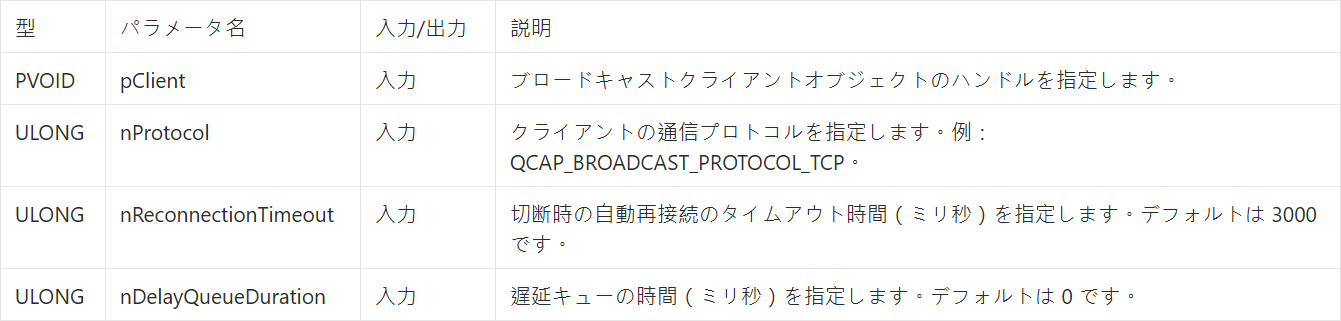
URL を設定した後、この API はサーバーへの接続リクエストを正式に開始する役割を担います。ここで、ストリームの受信に使用する TCP、UDP、または HTTP 通信プロトコルを指定し、切断時の自動再接続のタイムアウト時間を設定できます。
➤ 落とし穴回避ガイド : URL が rtsp://...の場合、通信プロトコルは必ず UDP または TCP を選択してください。URL がポート 8080 などを経由する HTTP チャネルである場合は、HTTP プロトコルを選択する必要があります。そうしないと接続に失敗します!
QCAP_STOP_BROADCAST_CLIENT
この API は、受信側のストリーム受信アクションを一時停止または停止するために使用されます。停止後、いつでも Start を再度呼び出して再接続できます。

QCAP_DESTROY_BROADCAST_CLIENT
プログラムを終了する準備ができた時、またはストリームを受信する必要がなくなった時、この API はクライアントオブジェクトを完全に破棄し、システムとネットワークのリソースを解放してメモリリークを防ぐために使用されます。

UI 表示インターフェースの構築
作業を始める前に、あなたはこう疑問に思うかもしれません。「なぜ今回は前回のように、前の章のプロジェクトをそのまま引き継いで書き進めることができないのか?」
➤ 【開発者のための概念整理:なぜ新しいプロジェクトを作成するのか?】 理由は簡単です:私たちが今構築しようとしているのは、全く新しい「受信側 (Client)」だからです!ネットワークストリーミングのアーキテクチャでは、送信側と受信側の両方が必要です。後で行う「最終確認(動作検証)」の段階で、ローカル接続テストを行うためには、 2つの独立したプログラムを同時に実行する 必要があります —— 1つは 9-8 RTSP ストリームサーバー機能の実践チュートリアルで作成した「RTSP サーバー(送信側)」であり、もう1つが今回開発する「専用プレイヤー(受信側)」です。
もし前の章のプロジェクトを直接書き換えてしまうと、後でテスト用の信号を送信してくれるサーバーがなくなってしまいます!
今回は、小さくても必要な機能がすべて揃った専用プレイヤーのインターフェースを構築します。URL の入力や通信プロトコルの選択ができるだけでなく、受信したデータ量をリアルタイムで監視することもできます!
NetReceiver 新規プロジェクトの作成
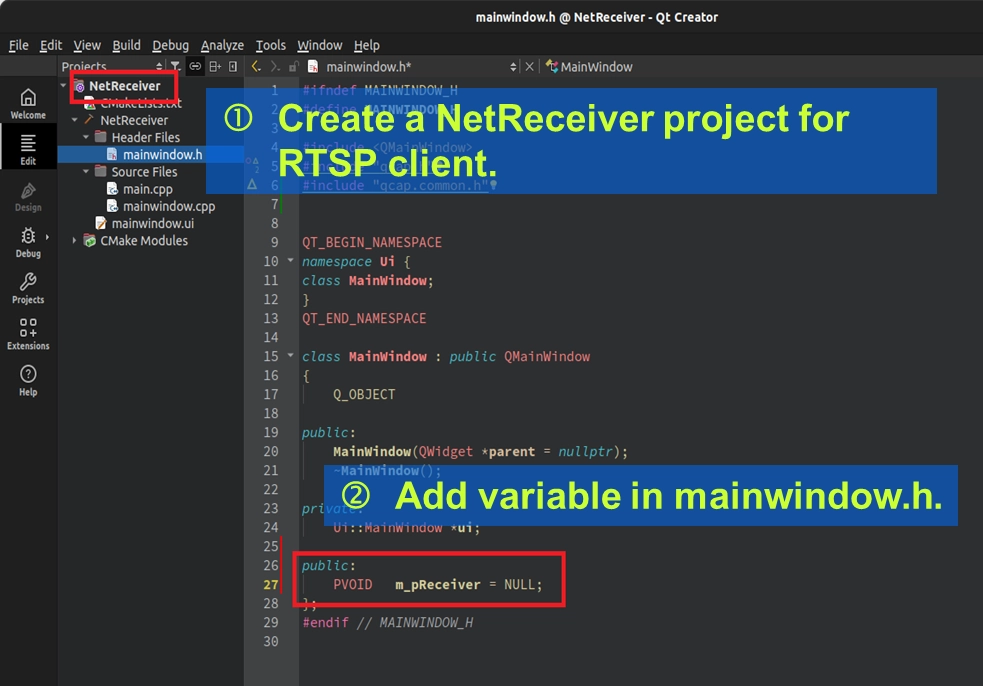
Qt Creator を開き、 9-3 基礎テンプレートプロジェクトの作成:Hello NexVDO SDK!で学んだ手順を参考にして、完全に新しい Qt Widgets Application を作成し、プロジェクト名を NetReceiver に設定してください。 CMakeLists.txt に NexVDO SDK が正しくリンクされていることを必ず確認してください。
次に、 mainwindow.h を開き、受信側の頭脳(Handle)を宣言し、それを NULL に初期化します:
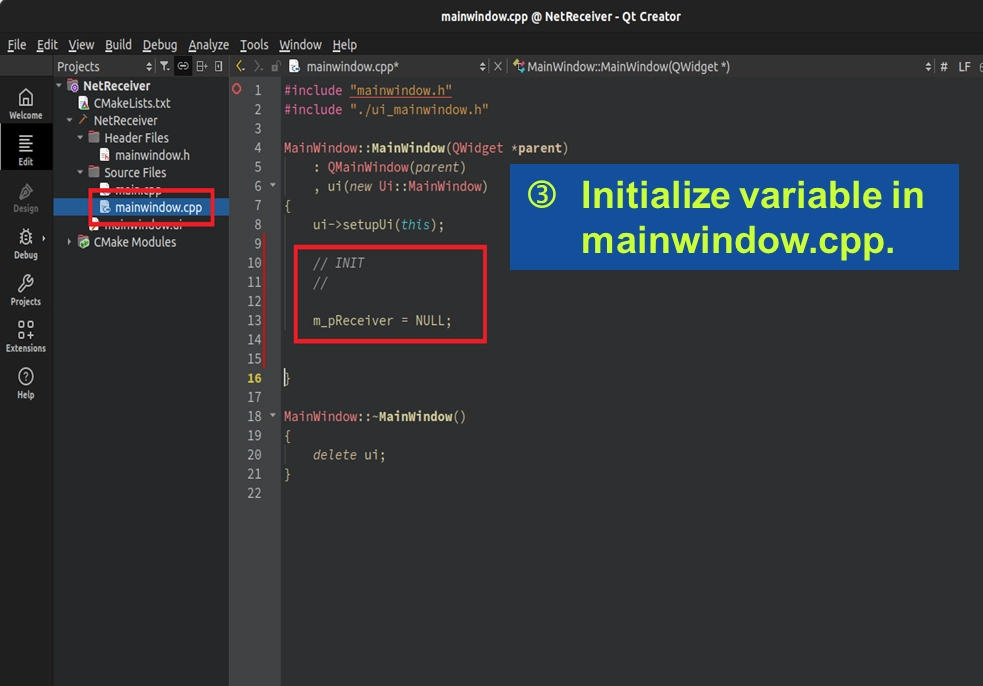
UI インターフェースコンポーネントの配置
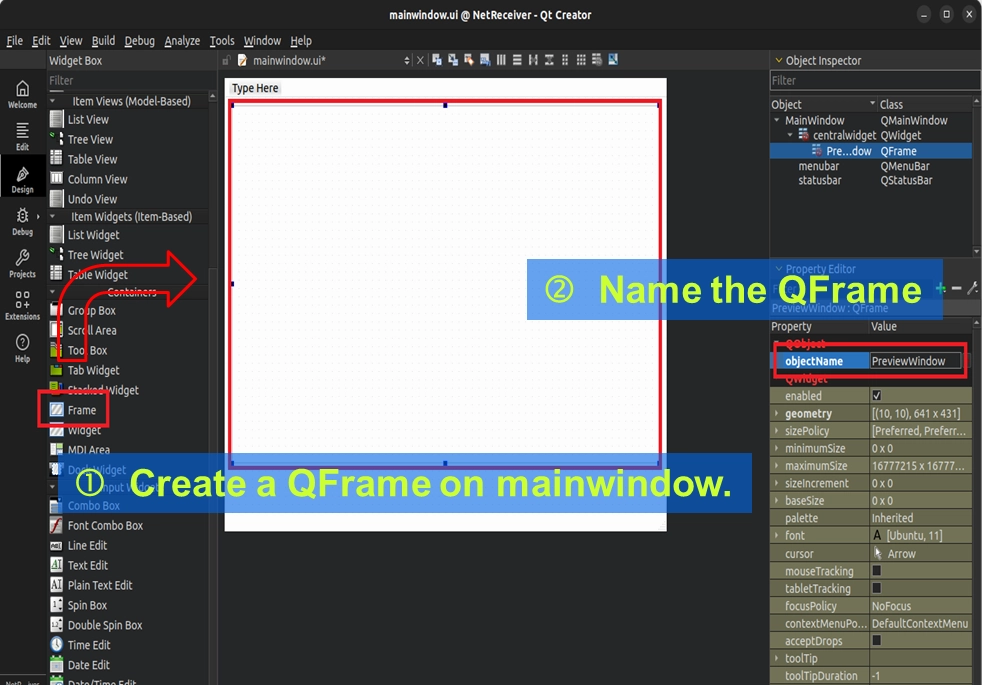
mainwindow.ui をダブルクリックしてデザインモードに入り、以下のコンポーネントを順番にドラッグ&ドロップして、プレイヤーのインターフェースを充実させましょう:
• 再生ウィンドウ ( QFrame ) : QFrame をドラッグし、 objectName を PreviewWindow と命名します。ここが、後でデコードされた映像が表示される場所になります。
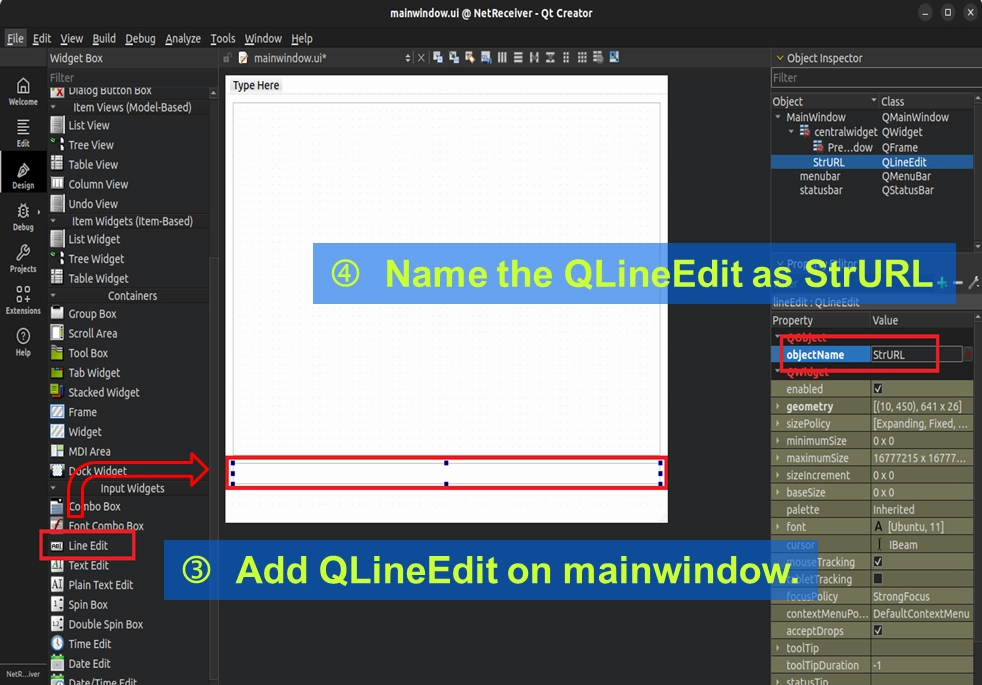
• URL 入力ボックス ( QLineEdit ) : 1行テキスト入力ボックスをドラッグし、StrURL と命名して、ユーザーがリモートサーバーの URL を自由に入力できるようにします。
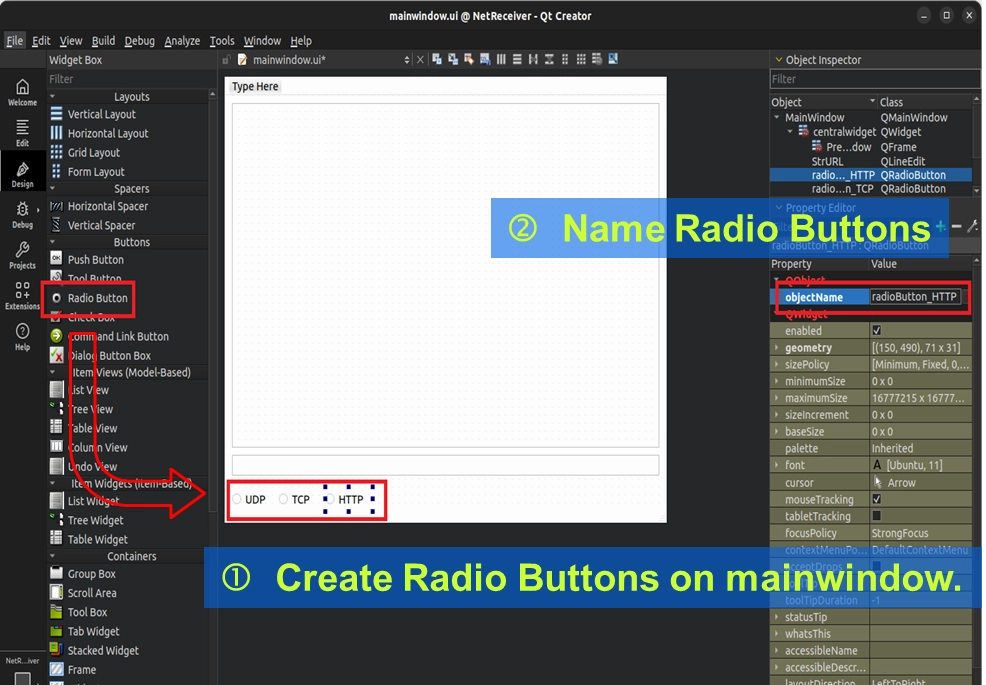
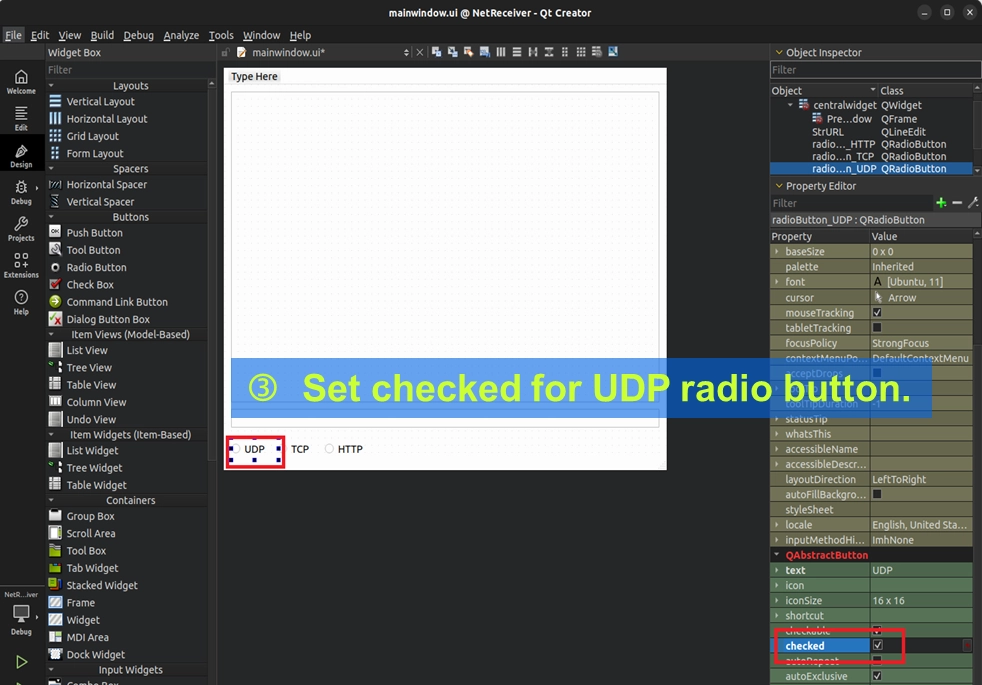
• 通信プロトコルオプション ( QRadioButton ) : 3つのラジオボタンをドラッグし、それぞれ radioButton_UDP、 radioButton_TCP、radioButton_HTTP と命名します。
➤ ヒント:プロパティ欄で UDP をデフォルトの checked ( チェック済み ) に設定してください。
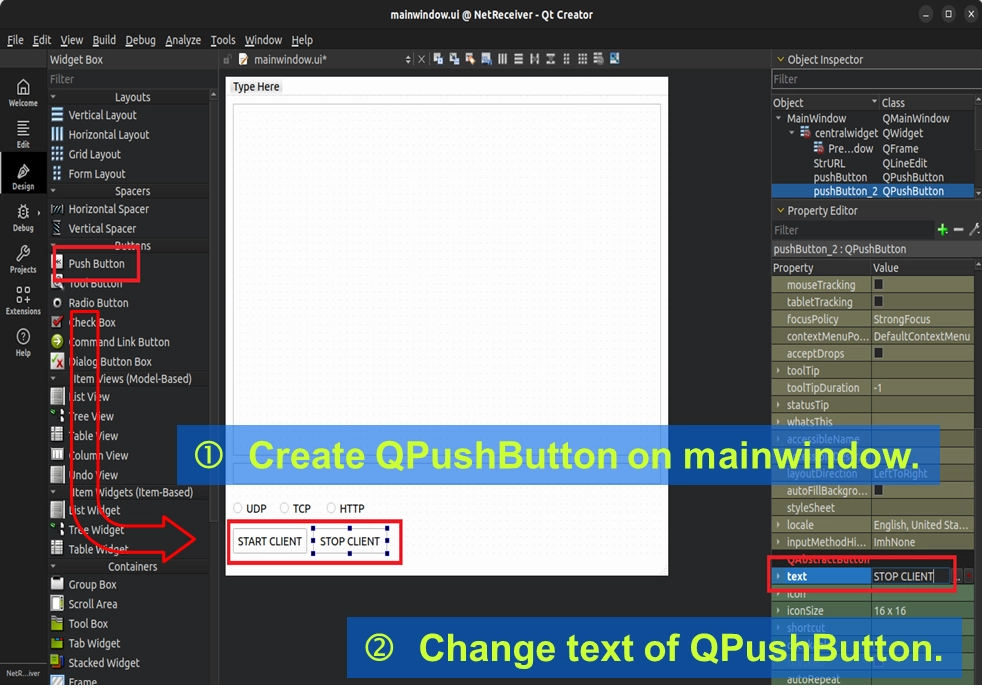
• コントロールボタン ( QPushButton ) : 2つのボタンをドラッグし、テキストをそれぞれ 「START CLIENT」 と 「STOP CLIENT」に変更します。
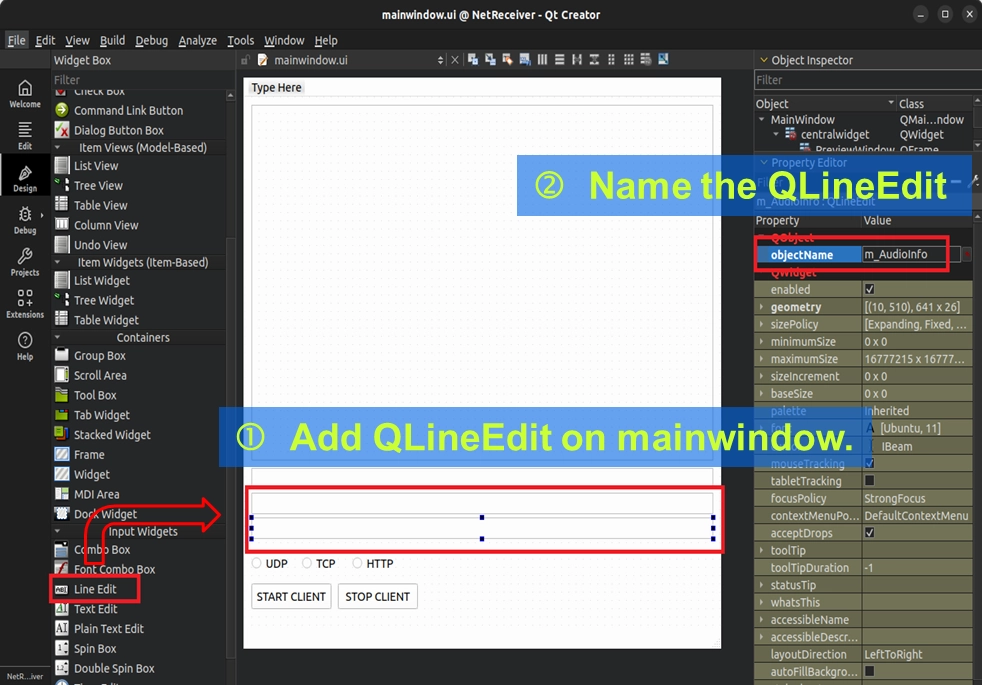
• トラフィック監視ボックス ( QLineEdit ) : リアルタイムで受信したデータサイズを表示するために、さらに入力ボックスを2つドラッグし、それぞれ m_VideoInfo と m_AudioInfo と命名します。
完了後、START と STOP の2つのボタンをそれぞれ右クリックし、「Go to slot... (スロットへ移動)」 を選択して、それらのクリックイベントを作成します。
ボタンコントロールイベントのバインド( 関連付け )
コンポーネントの配置が完了したら、最後にもう1つ非常に重要なアクションが残っています—— UI ボタンとバックエンドのコードをリンク( 連携 )させることです!
先ほど作成した START CLIENT と STOP CLIENT ボタンをそれぞれ右クリックし、メニューから 「Go to slot... (スロットへ移動)」 を選択してください。この便利な機能により、Qt Creator は自動的に
mainwindow.cpp にジャンプし、専用のボタンクリックイベントブロック ( on_pushButton_clicked ) を作成してくれます。
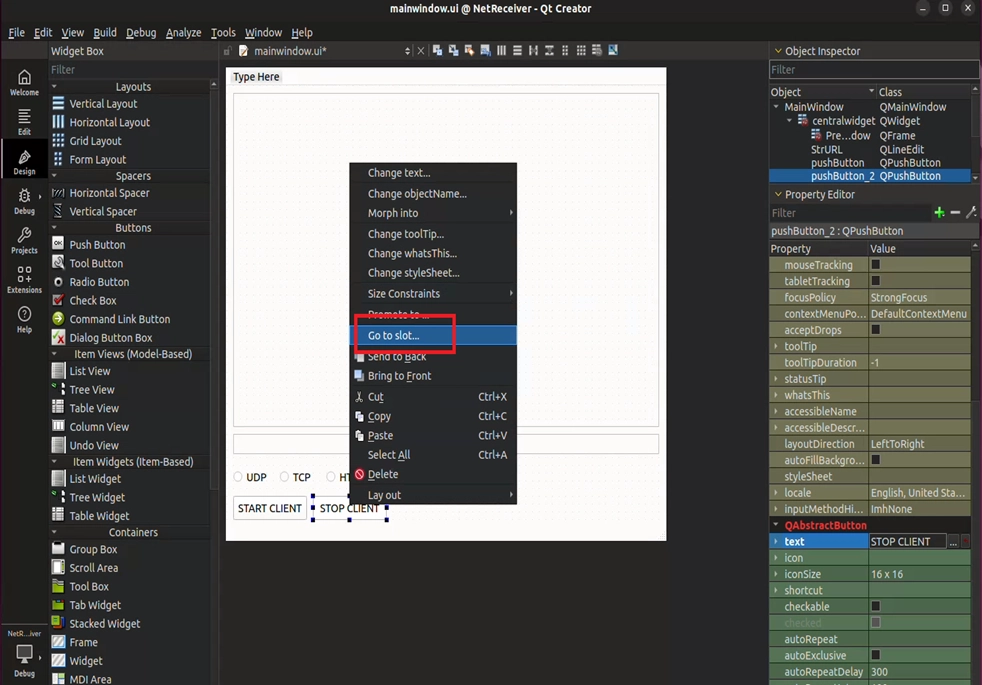
後ほど、私たちの RTSP クライアント接続のすべての魔法は、このブロック内に記述されます!
コアコードの記述
インターフェースの配置が完了したら、 mainwindow.cpp と mainwindow.h に入ってコアロジックを記述します。ここでは、「ヘッダーファイルと変数の準備」、「安全な終了(セーフエグジット)メカニズム」、「接続の開始と停止」、そして最も重要な「Callback の傍受(インターセプト)とトラフィック統計」の4つの部分に分けて説明します。
初期 URL の設定と安全な終了メカニズム
プログラムの起動時に、毎回ユーザーに URL を再入力させるのは非常に面倒です。mainwindow.cpp のコンストラクタ内で、私たちの StrURL にデフォルトのローカル接続 URL を入力してください。
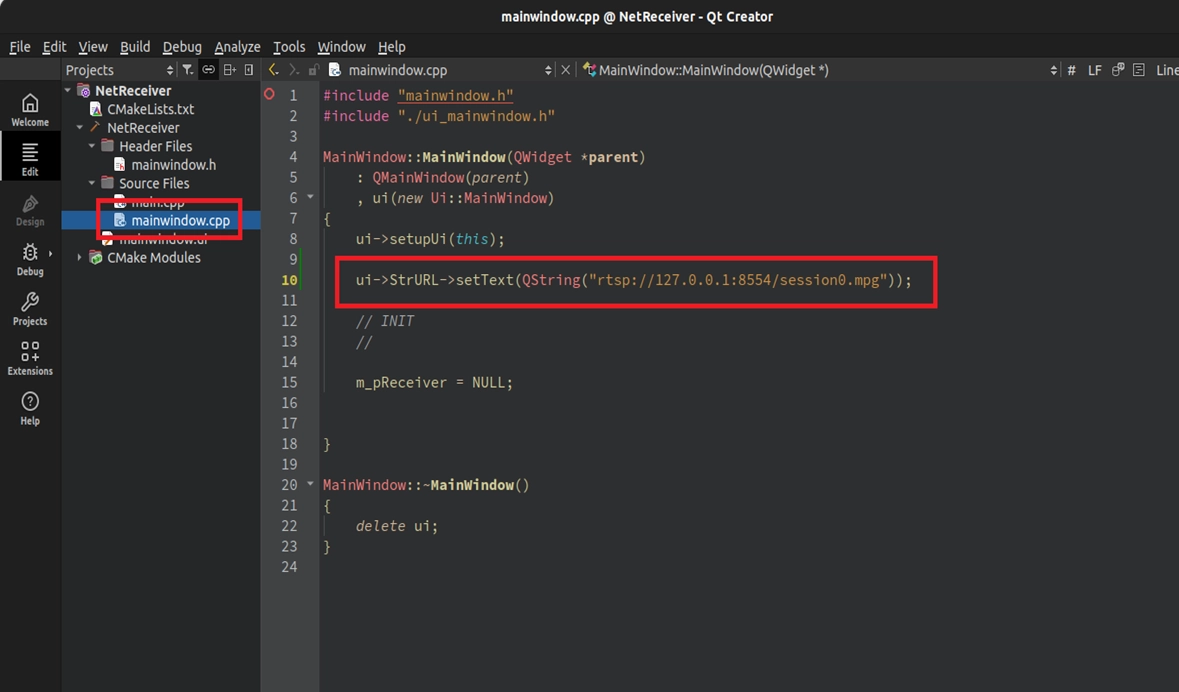
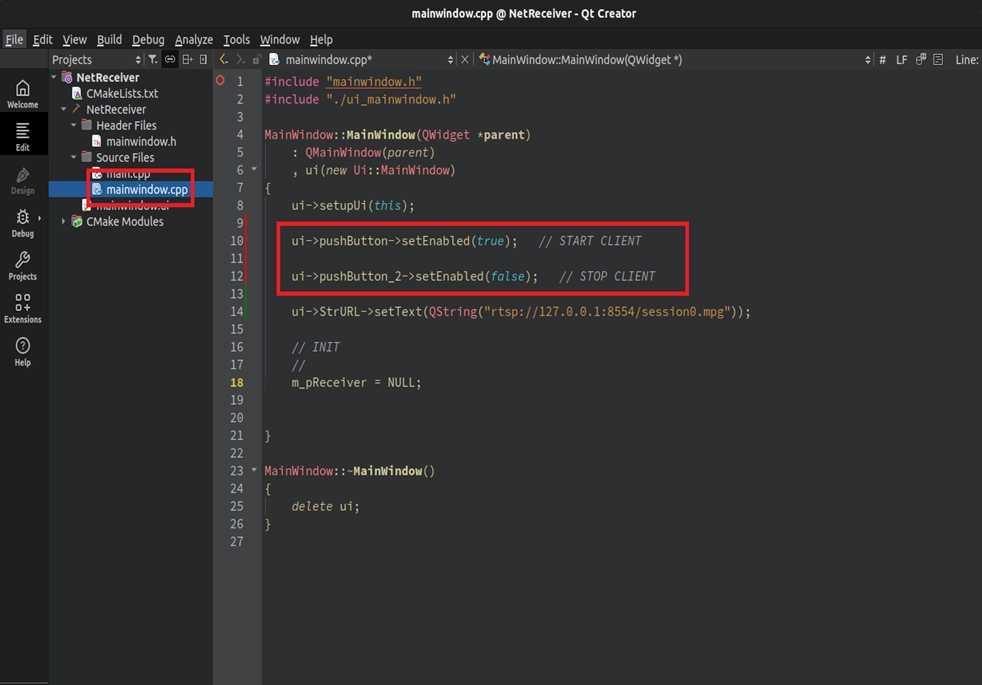
同時に、ボタンのデフォルトのフールプルーフ(エラー防止)状態を設定します。
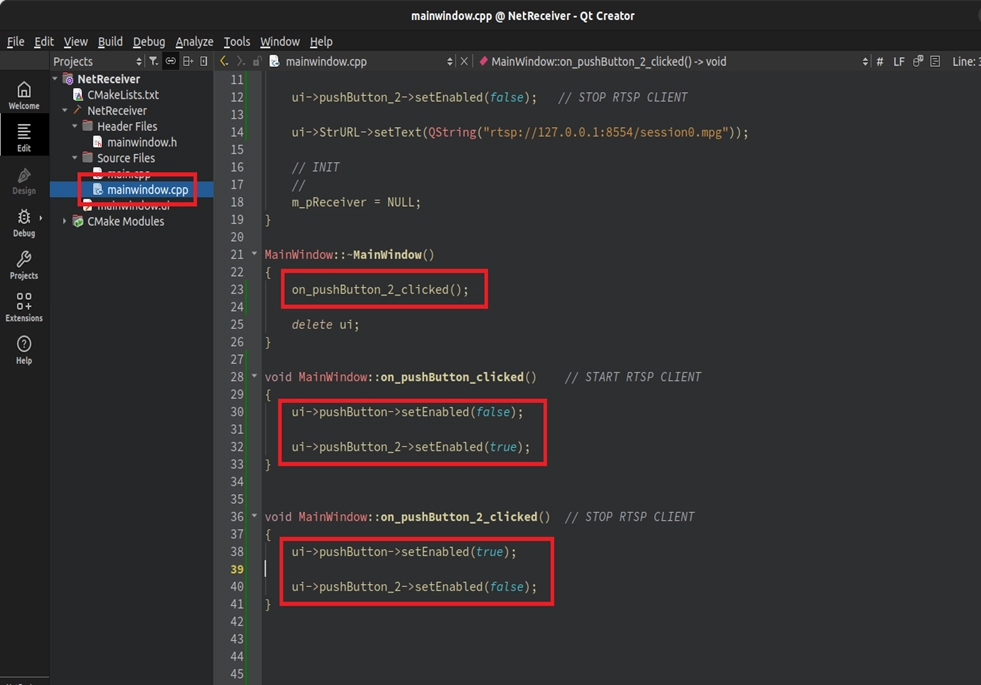
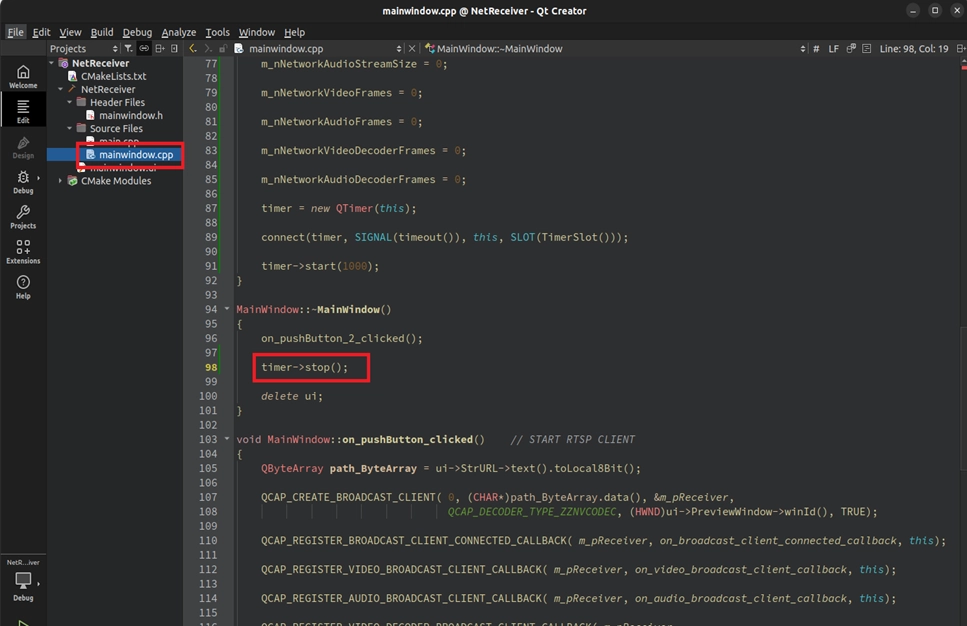
さらに重要なことは、プログラム終了時のリソースのロック(フリーズ)を避けるために、デストラクタ ( ~MainWindow ) 内で強制的に STOP を呼び出し、安全に終了させることです!
実装:START / STOP CLIENT 接続ロジック
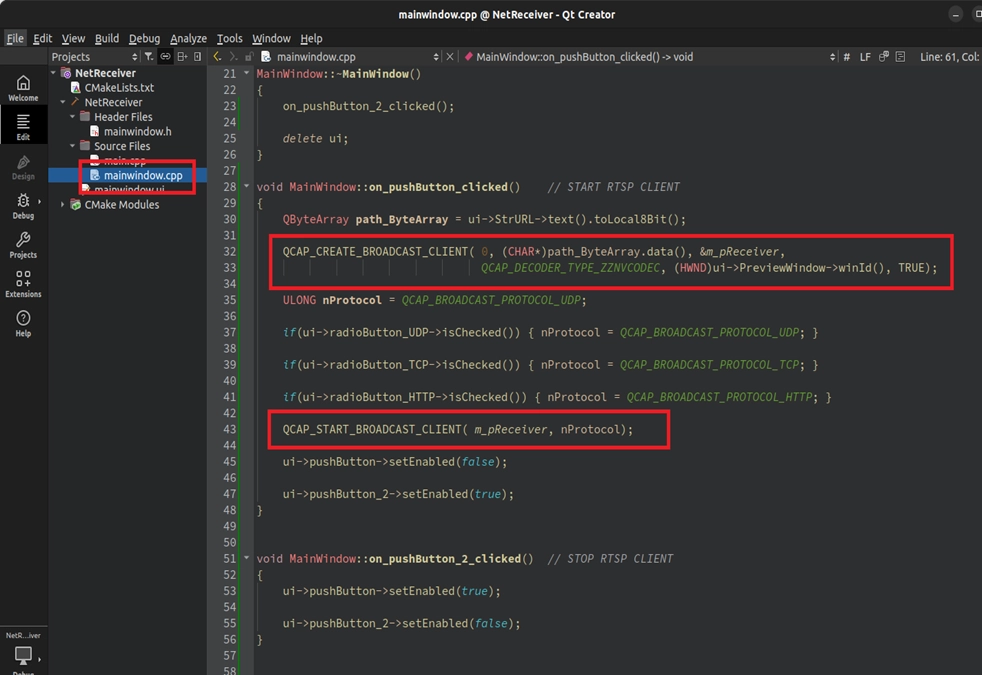
次に、START ボタン内で受信側(クライアント)を作成し、UI 上でどの通信プロトコル ( UDP/TCP/HTTP ) が選択されたかを判断し、正式に接続を開始します。STOP ボタンは、オブジェクトの停止と破棄を担当します。
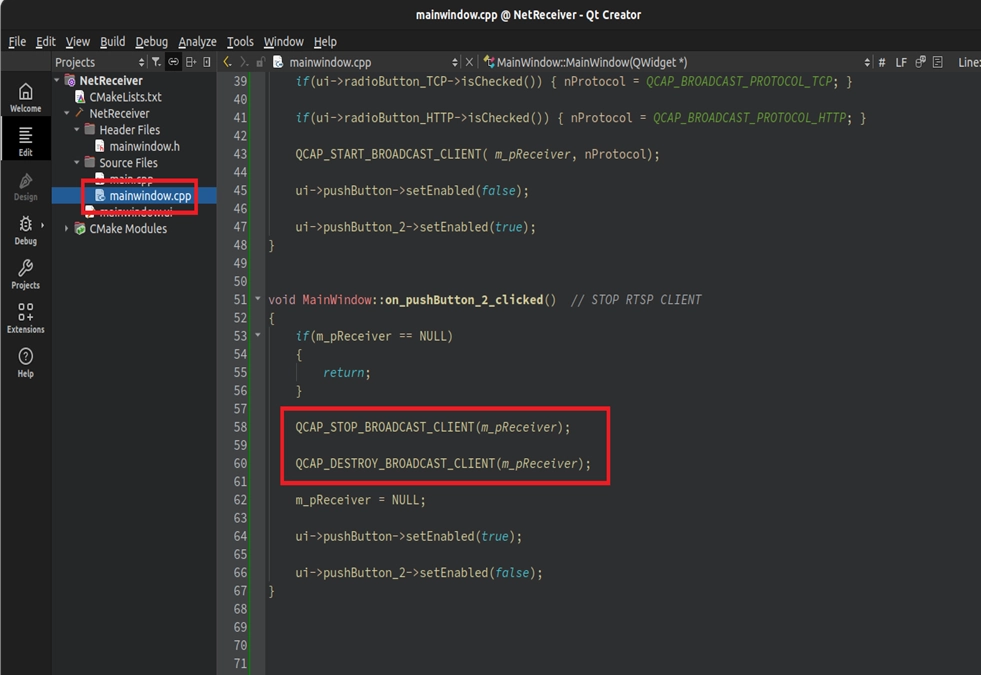
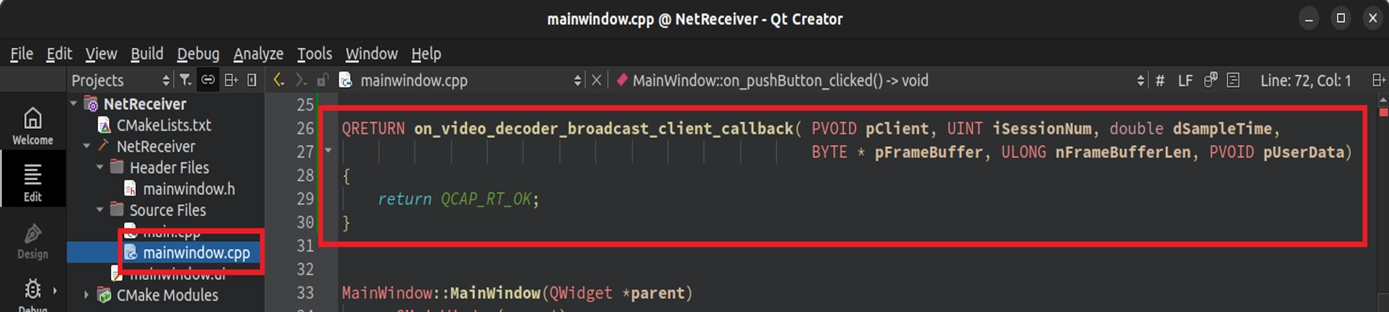
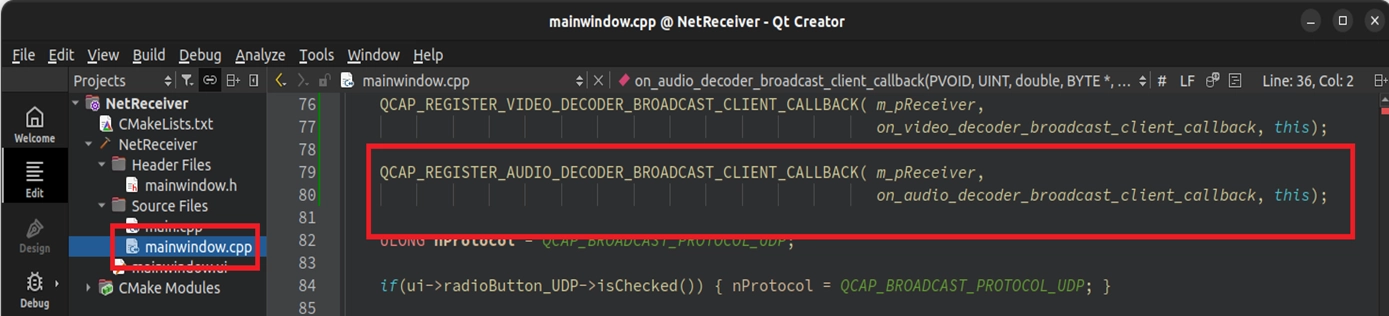
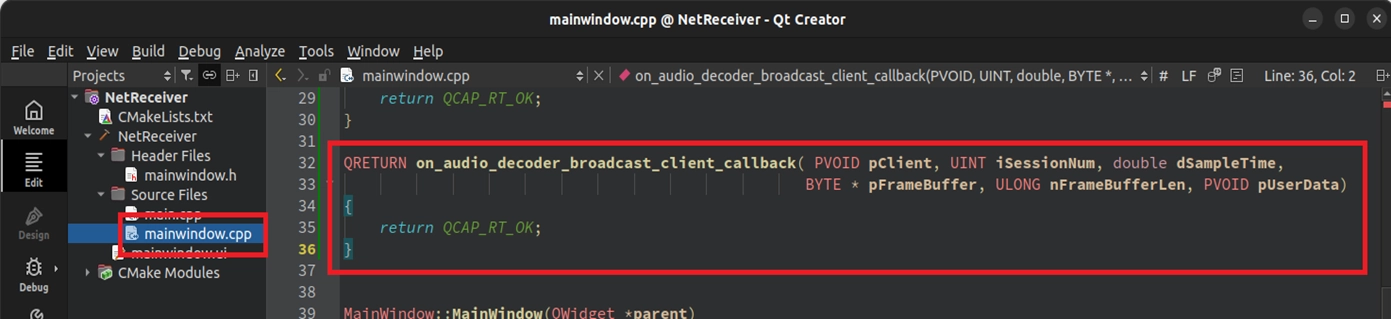
5つの Callback の登録
接続ロジックを記述した後、先ほど学んだ5つの Callback を START ボタン内に登録する必要があります。START ボタン内の QCAP_CREATE の後に、以下のコードを追加してください:
• QCAP_REGISTER_BROADCAST_CLIENT_CONNECTED_CALLBACK
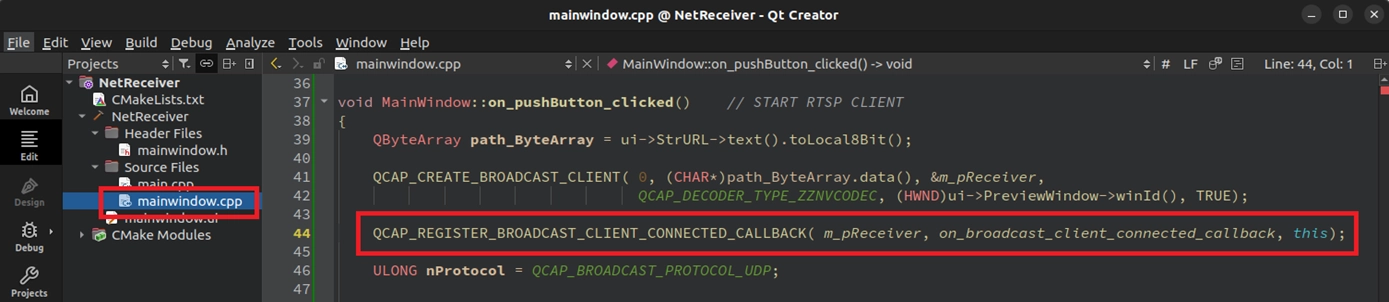
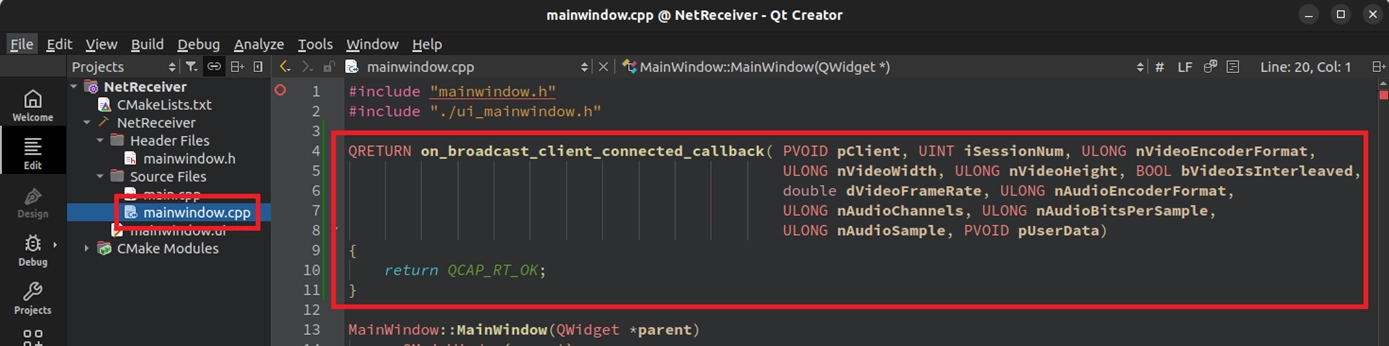
• QCAP_REGISTER_VIDEO_BROADCAST_CLIENT_CALLBACK
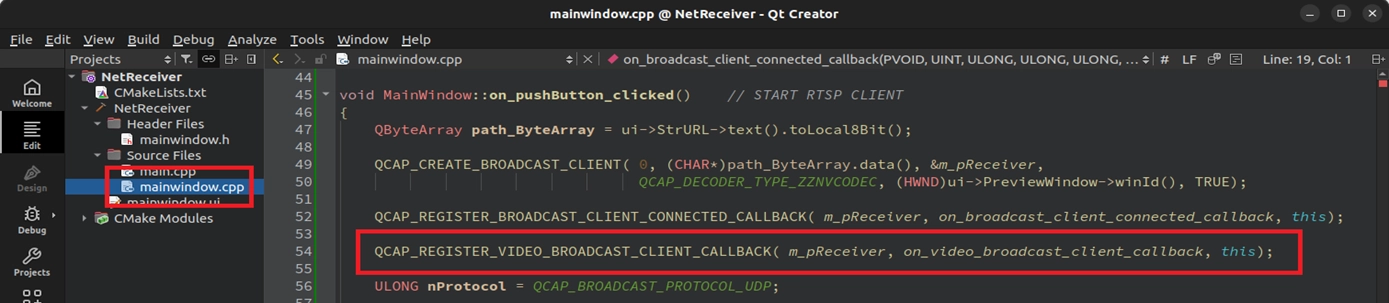
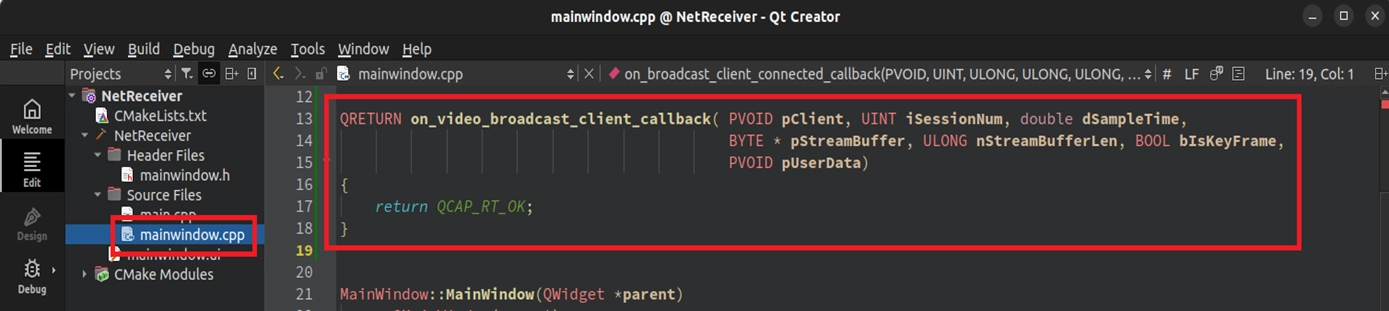
• QCAP_REGISTER_AUDIO_BROADCAST_CLIENT_CALLBACK
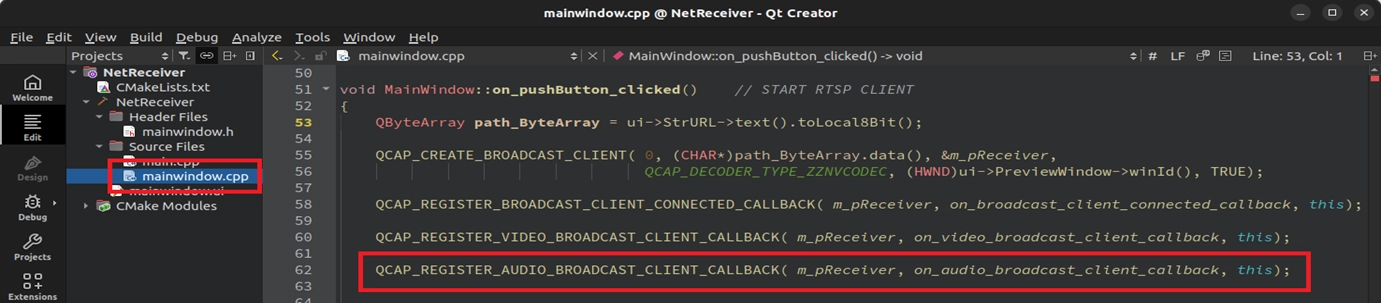
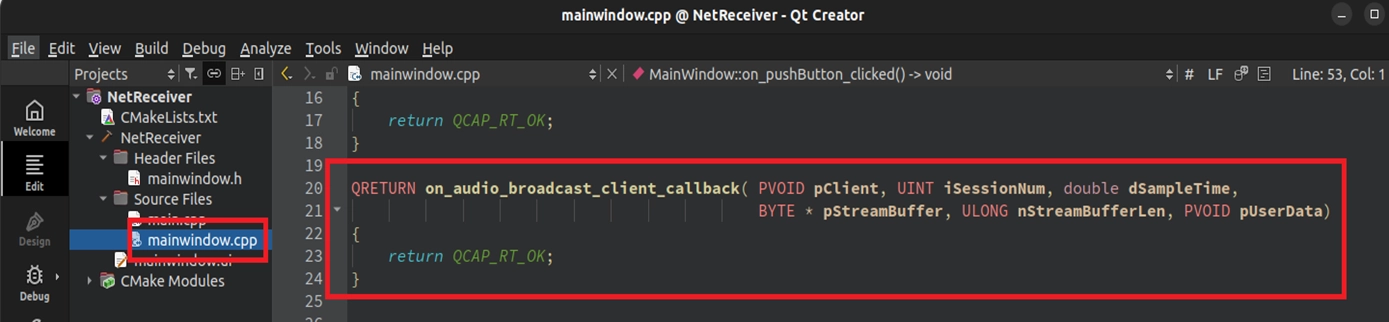
• QCAP_REGISTER_VIDEO_DECODER_BROADCAST_CLIENT_CALLBACK
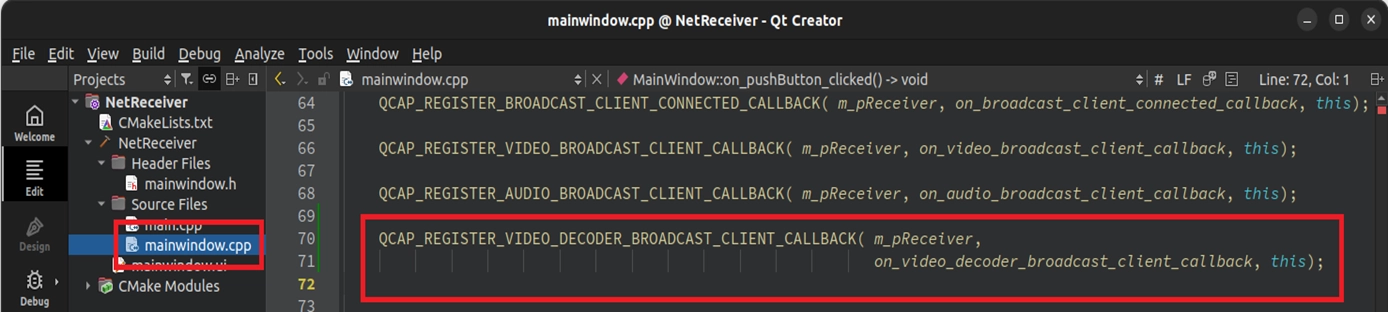
• QCAP_REGISTER_AUDIO_DECODER_BROADCAST_CLIENT_CALLBACK
トラフィック統計と QTimer リアルタイム更新
UI に受信状況をリアルタイムで表示させるため、mainwindow.h にトラフィック統計変数 QTimer を追加してください。
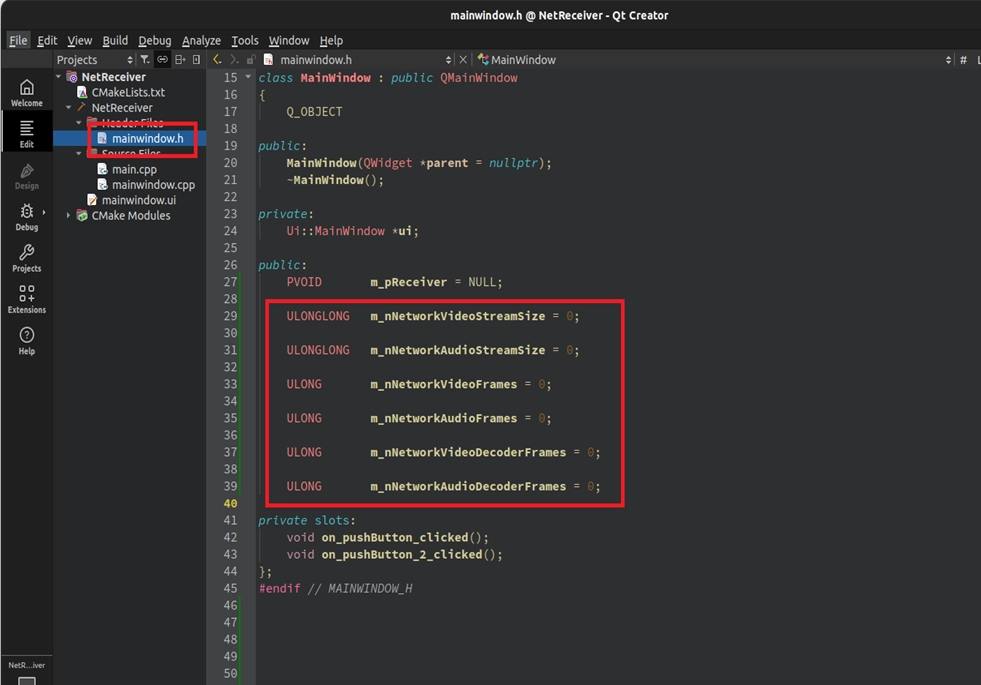
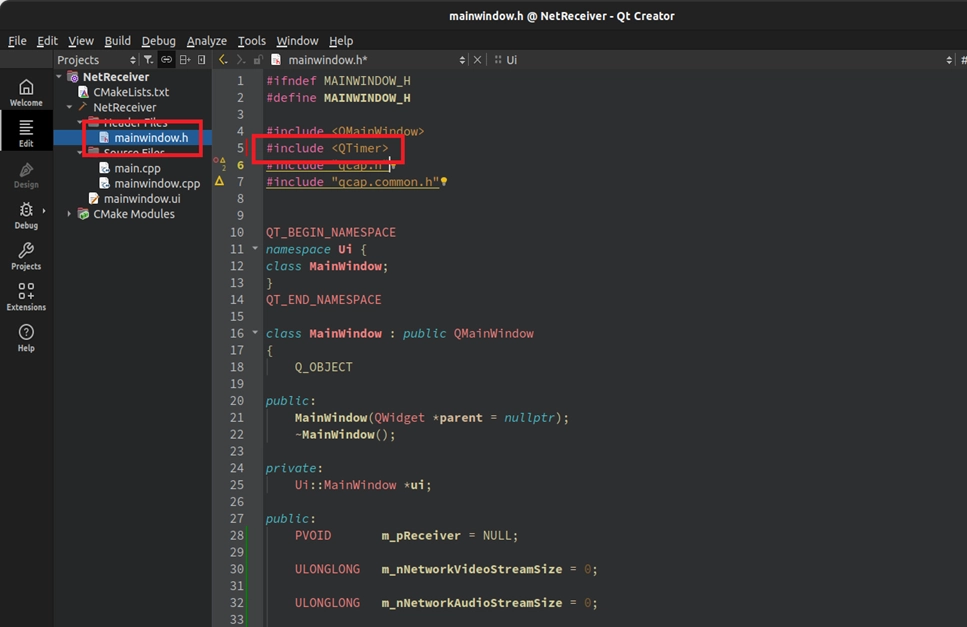
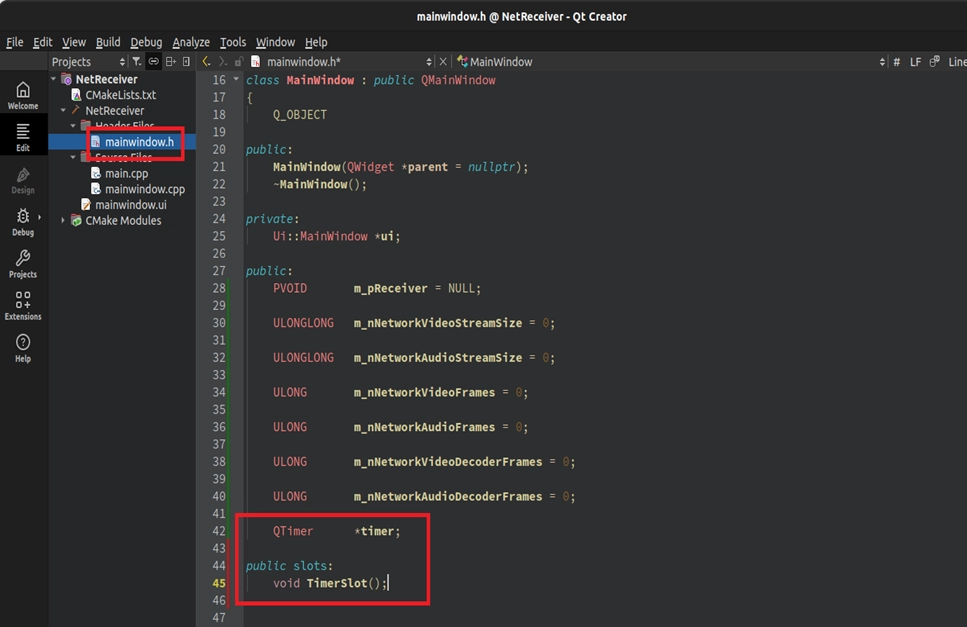
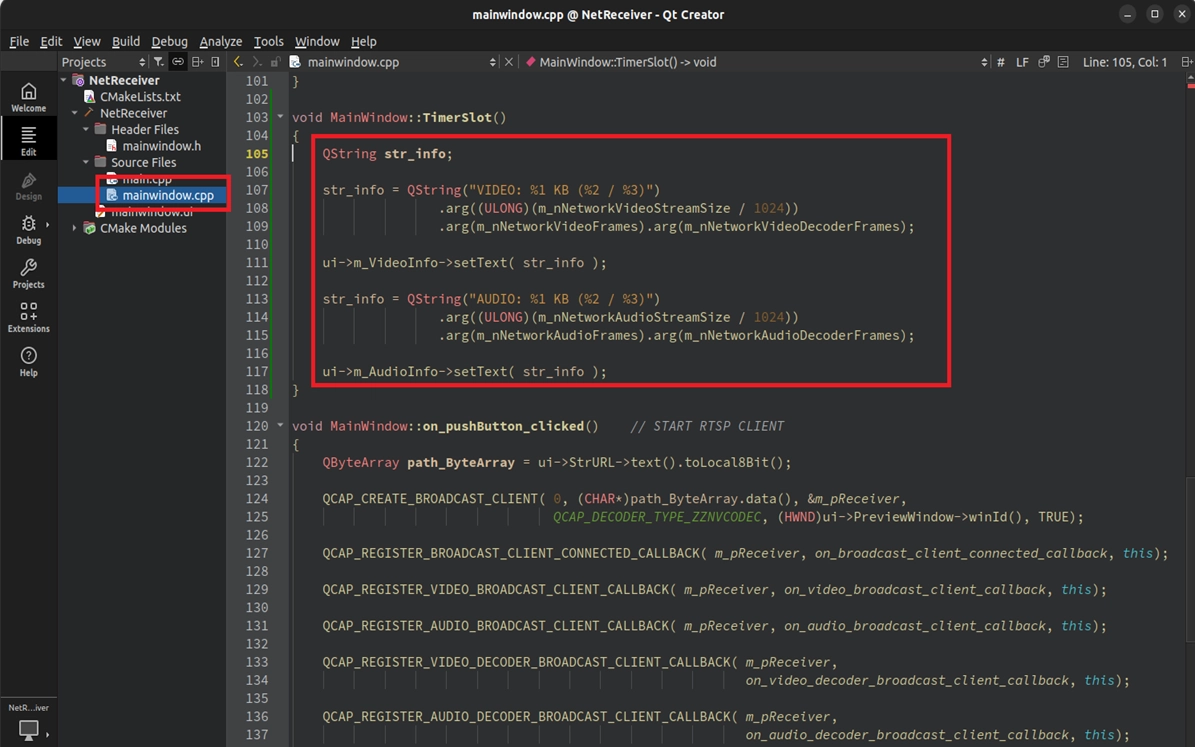
次に、対応する Callback 関数内でデータ量を累積( 加算 )します( 例: pNetReceiverDlg->m_nNetworkVideoStreamSize += nStreamBufferLen; )。
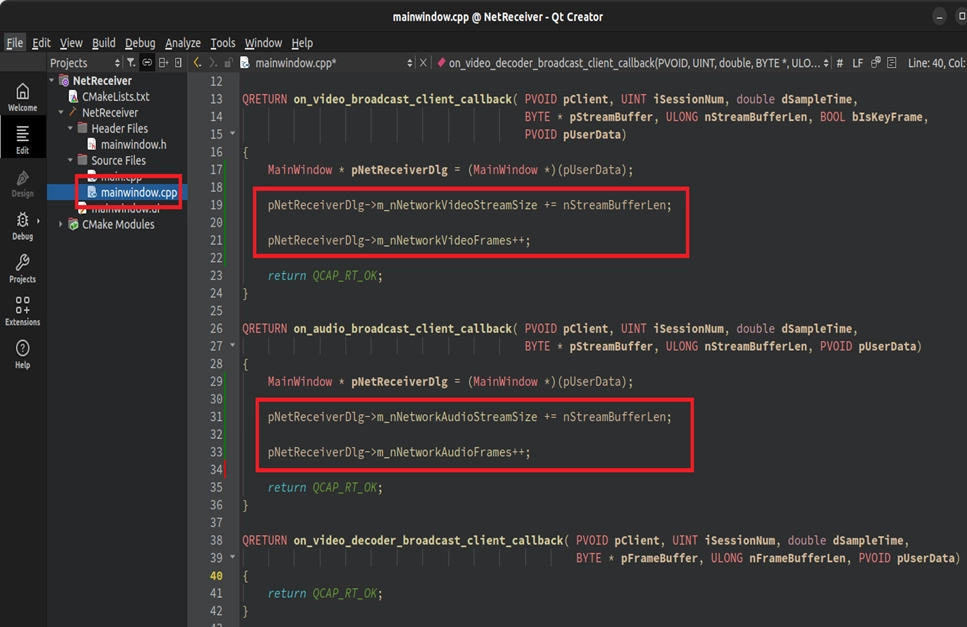
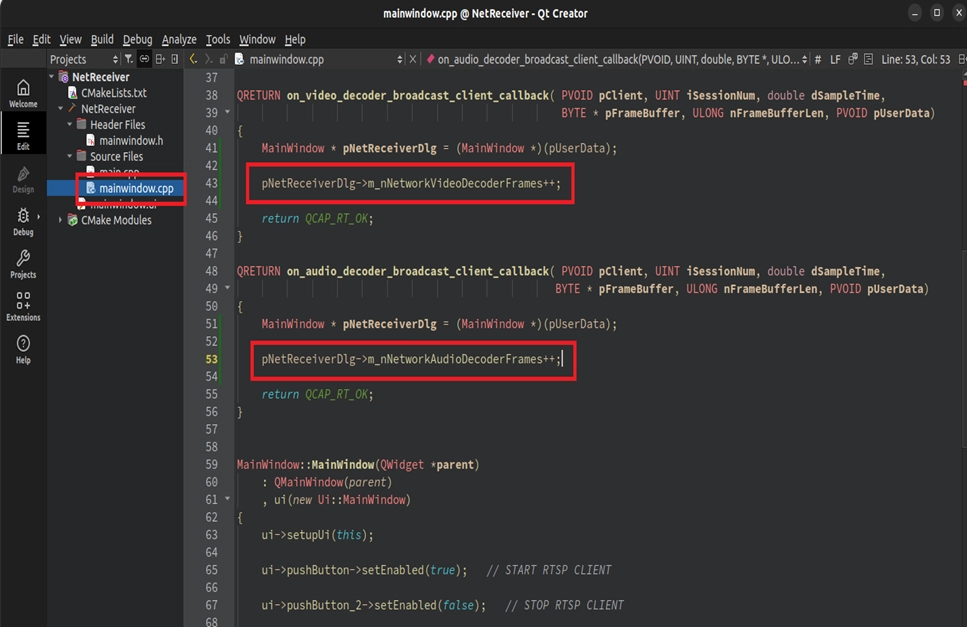
最後に、 mainwindow.cpp でインターフェースを 1000 ミリ秒ごとに更新するように設定します:
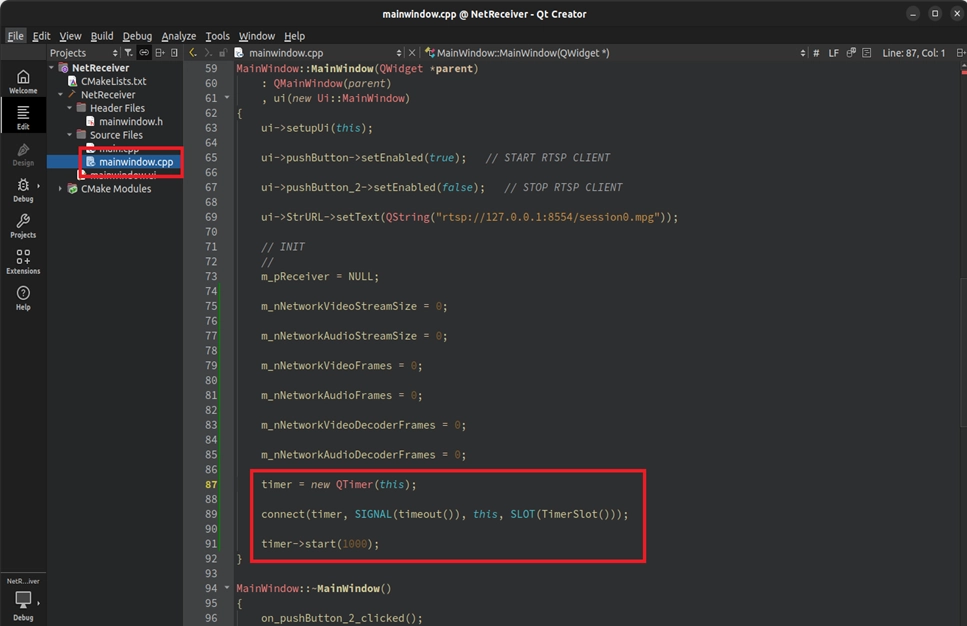
➤ リマインダー( 注意 ):QTimer を追加したため、タイマーを安全に閉じるために ~MainWindow() デストラクタ内に timer->stop(); を追加することを忘れないでください
最終確認(動作検証)
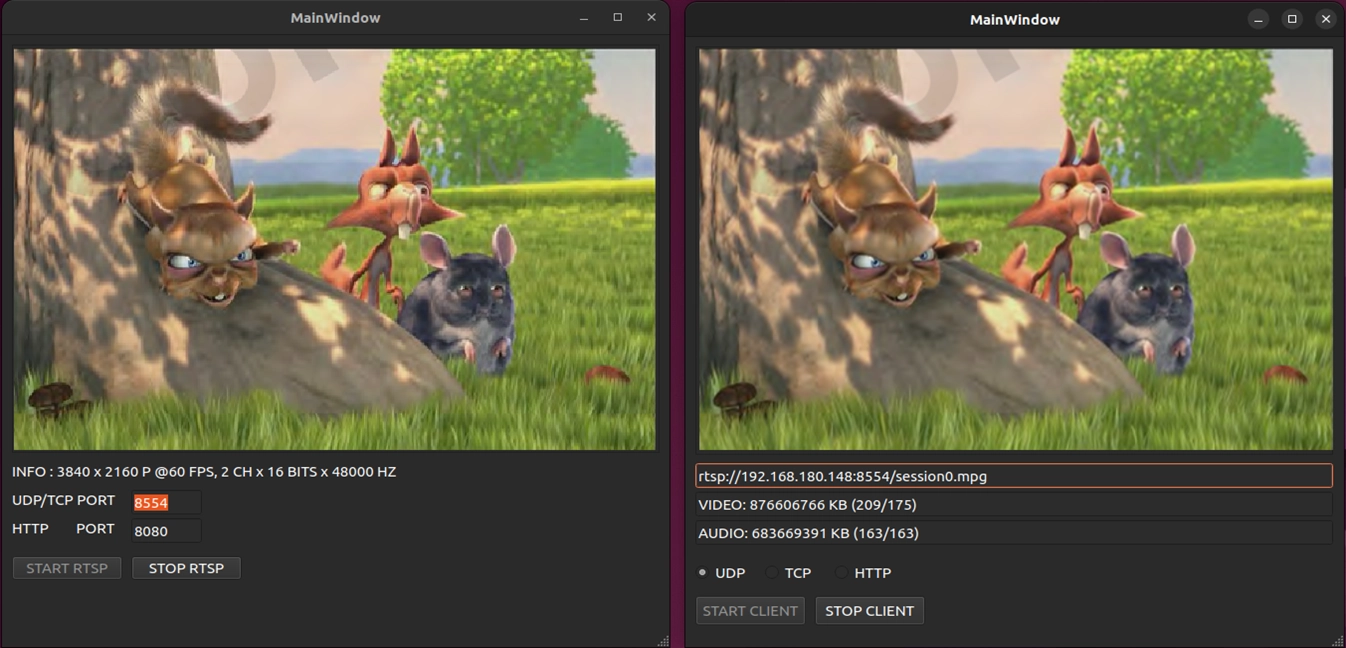
素晴らしい!これまでの数章の訓練を経て、私たちはついにデコード機能を備えた RTSP 専用プレイヤーを自らの手で書き上げました!いよいよ成果を確認する時間です:
1. 送信側 ( Server ) の起動 : まず、 9-8 RTSP ストリームサーバー機能の実践チュートリアル の プロジェクトに戻り、コンパイルして実行してください。カメラ映像のキャプチャに成功したら、「START RTSP」をクリックして、サーバーをバックグラウンドで静かにブロードキャスト( 配信 )させます。
2. 受信側 ( Client ) の起動 : 続いて、私たちがたった今書き上げたばかりのこの NetReceiver プレイヤープロジェクトをコンパイルして実行します。
3. 成果を楽しむ! 入力ボックス内の URL が rtsp://127.0.0.1:8554/session0.mpg であることを確認し、通信プロトコルとしてデフォルトの UDP を選択して、 「START CLIENT」を押します!
4. もしあなたのカメラの映像が NetReceiver のウィンドウに完璧に表示され、下部の VIDEO と AUDIO のデータが毎秒絶え間なく増加して動いていれば、見事成功です!
© Blender Foundation | Big Buck Bunny | CC BY 3.0